VGA to HDMI Converter Not Working? Common Fixes That Actually Work
So you’ve plugged a brand-new VGA-to-HDMI converter into your older computer and modern monitor, only to be greeted by a stubbornly blank screen. It’s frustrating—and surprisingly common. In fact, a quick glance at any tech forum reveals countless users describing the exact same scenario: a black screen, a flicker of recognition from the display, and then nothing.
The good news? Most of these problems have straightforward fixes. Here’s what you need to know.
Why VGA-to-HDMI Conversion Isn’t Plug-and-Play
Before diving into fixes, it helps to understand what’s actually happening under the hood. VGA (Video Graphics Array) is an analog signal standard that dates back to the late 1980s. It sends video information as continuous electrical waves—think of it like an old cassette tape. HDMI (High-Definition Multimedia Interface), by contrast, is a modern digital standard that transmits video and audio as precise streams of ones and zeros.
These two formats are fundamentally incompatible. A simple passive cable—just a bundle of wires with no internal circuitry—cannot translate an analog wave into digital code. That’s why you need an active converter: a device with a specialized microchip (an Analog-to-Digital Converter, or ADC) that actively processes and translates the signal.
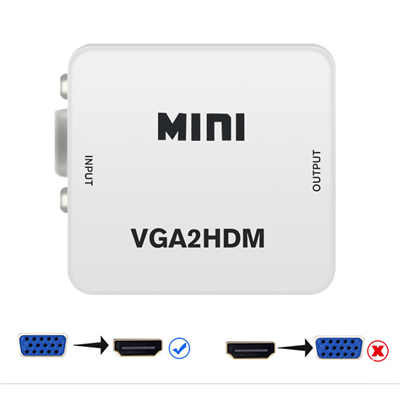
Critical point: VGA-to-HDMI converters are unidirectional—they only work in one direction. An HDMI-to-VGA adapter is a completely different product and will not work in reverse. Check your adapter’s packaging carefully.
Step-by-Step Troubleshooting
1. Check the Power Supply (This Is the #1 Culprit)
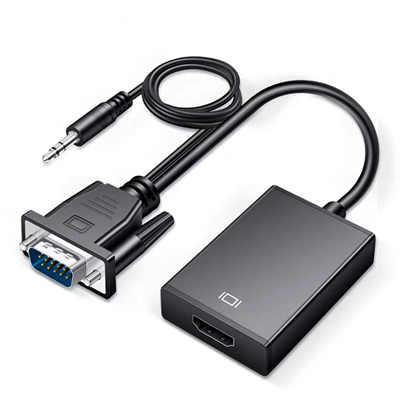
Here’s something that catches people off guard: most VGA-to-HDMI converters require external power. They typically come with a USB cable that must be plugged into a powered USB port.
What to do:
- Connect the USB power cable to a USB port on your computer, a powered USB hub, or even a wall charger
- Look for a power LED on the converter—if it’s not lit, the unit isn’t getting power
- Try a different USB port; some ports may not supply enough power, especially on older machines
One reviewer noted: “Nowhere does the user read that the adapter is active and requires power. It does not work without a USB cable connected, which may lead to the mistaken assumption that it is faulty.”. Some converters won’t display anything during the BIOS/boot phase because the USB port isn’t powered until the operating system loads.
2. Verify You Have the Right Direction
This sounds obvious, but it’s a surprisingly frequent mistake. VGA-to-HDMI converters are not bidirectional. If you accidentally bought an HDMI-to-VGA adapter instead, it simply won’t work for your setup.
What to do:
- Confirm your adapter specifically says “VGA to HDMI” (not “HDMI to VGA”)
- Check the product description: VGA goes to the source (computer), HDMI goes to the display (monitor/TV)
As one forum user put it: “VGA/HDMI adaptors are not bidirectional, unlike passive DVI-I↔VGA or DVI-D↔HDMI adaptors, because they actually need to convert the signals to a different format.”
3. Set the Correct Resolution and Refresh Rate
Your VGA source needs to output a resolution that the converter can actually handle. Many converters only support specific resolutions—commonly 1024×768, 1280×720, or 1920×1080 at 60Hz.
What to do:
- On Windows: Right-click the desktop → Display Settings → Advanced Display Settings → reduce the resolution to 1024×768 or 1280×720
- Set the refresh rate to 60Hz
- If your computer has multiple displays, press Windows key + P and select “Extend” or “Duplicate”
Unsupported resolutions are one of the most common causes of blank or distorted screens. One Amazon reviewer noted their adapter “works perfectly with one very major caveat: The VGA output MUST be 1920×1080. No other resolution will work.”
4. Update Your Graphics Drivers
Outdated or incompatible graphics drivers can prevent your computer from recognizing the connected display via the converter.
What to do:
- Open Device Manager on Windows
- Expand “Display adapters” → right-click your graphics card → Update Driver
- Alternatively, visit your GPU manufacturer’s website (NVIDIA, AMD, or Intel) for the latest drivers
5. Check All Physical Connections
Loose cables are a surprisingly common culprit.
What to do:
- Ensure the VGA connector is fully seated (finger-tighten the screws if present)
- Verify the HDMI cable is firmly plugged into both the converter and the display
- Try a different HDMI port on your monitor or TV—many displays have multiple inputs
- Test with a different HDMI cable if possible
Some older PCs have longer VGA mounting bolts that may need to be transferred to the converter for a secure connection.
6. Test with Another Display or Device
To isolate whether the problem is with the converter, the source, or the display:
What to do:
- Connect the converter to a different HDMI display (another monitor or TV)
- Test the converter with a different VGA source computer if available
- Bypass the converter entirely: connect your computer directly to a VGA monitor (if available) to confirm the VGA port works
7. Restart Everything
Sometimes the system simply fails to detect the new display on initial connection.
What to do:
- Restart your computer with the converter already connected
- Unplug the HDMI cable, wait 10 seconds, and plug it back in—this can reset EDID detection
8. Try a Higher-Quality Converter
Not all converters are created equal. Low-end models may not provide stable signal conversion, leading to intermittent failures or no signal at all. If you’ve tried everything else and still get nothing, the converter itself may be defective.
What to look for in a replacement:
- USB power input (essential for active conversion)
- Support for your target resolution (most support up to 1080p; check specifications)
- Positive reviews mentioning compatibility with your operating system
- Active conversion chip (not a passive cable)
Quick Reference: Resolution Support
Most VGA-to-HDMI converters support a range of input resolutions. Here’s a typical compatibility list based on common converter specifications:
| Resolution | Refresh Rates |
|---|---|
| 640×480 | 60Hz, 75Hz |
| 800×600 | 60Hz, 75Hz |
| 1024×768 | 60Hz, 75Hz |
| 1280×720 | 60Hz |
| 1280×1024 | 60Hz, 75Hz |
| 1366×768 | 60Hz |
| 1920×1080 | 60Hz |
| 1920×1200 | 60Hz |
If your source is outputting a resolution outside this range, the display will likely show a blank or distorted image.
Why Some Converters Work on Linux but Not Windows
This is a real head-scratcher for many users. One Microsoft Q&A thread describes a Vention adapter that worked perfectly on Linux Mint but showed a blank screen on Windows 10. The secondary display would flash an HDMI pop-up and then shut down as if no signal was present.
This typically comes down to driver differences and how each operating system handles EDID (Extended Display Identification Data) communication. Some converters don’t properly pass EDID data from the monitor back to the source. Windows may be more particular about this handshake than Linux.
Workarounds:
- Manually set the resolution and refresh rate in Windows display settings
- Try the “Extend” display option via Windows + P
- If possible, connect the converter while Windows is already running (rather than booting with it connected)
Final Checklist
Before you give up and buy a new converter, run through this checklist:
- USB power cable is connected to a working power source
- Converter is definitely VGA-to-HDMI (not HDMI-to-VGA)
- Resolution is set to a supported value (try 1024×768 @ 60Hz)
- Graphics drivers are up to date
- All cables are firmly connected
- Correct HDMI input is selected on the display
- Computer has been restarted with the converter connected
- Converter works with a different display or source
Frequently Asked Questions
Q: Do I need a special cable or just a simple adapter for VGA to HDMI?
A: You need an active converter, not just a passive cable. VGA uses analog signals while HDMI uses digital signals, so a simple cable with no internal electronics cannot perform the conversion.
Q: Why does my VGA to HDMI converter need USB power?
A: Most VGA-to-HDMI converters are “active” devices that contain a conversion chip. This chip requires external power to function, which is why many converters include a USB cable for power.
Q: Can I use an HDMI to VGA adapter in reverse?
A: No. VGA-to-HDMI and HDMI-to-VGA converters are not bidirectional. They contain electronics designed to convert signals in only one direction.
Q: My converter works on one computer but not another—why?
A: This could be due to different graphics drivers, resolution settings, or how each computer handles EDID communication. Try updating drivers and adjusting the resolution on the non-working computer.
Q: What resolution should I set for my VGA source?
A: Start with 1024×768 at 60Hz, which is widely supported. If that works, you can try higher resolutions like 1280×720 or 1920×1080, but check your converter’s specifications first.
Q: Why is there no audio?
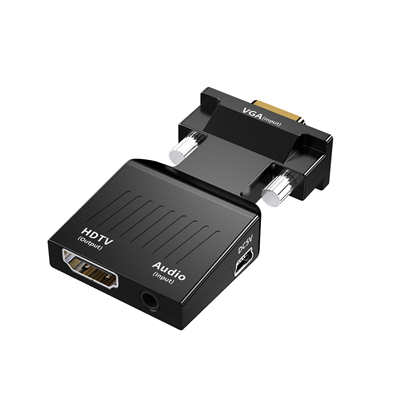
A: VGA does not carry audio signals at all—it’s video-only. Some VGA-to-HDMI converters include a separate 3.5mm audio input jack that you need to connect separately for sound.
📖 Related Featured Articles

10 Ways to Use a VGA to HDMI Converter Bridging Analog-Digital Divide
Discover 10 practical ways to use a VGA to HDMI converter—from classrooms and conference rooms to di...

Can I connect VGA to HDMI without a converter? - WinFitin
Can you connect VGA to HDMI without a converter? We examine signal types, voltage differences, data ...

VGA to HDMI Adapter Shows Green Screen? Here‘s How to Fix It
Is your VGA-to-HDMI adapter showing a green screen? Learn why this happens and follow our 7-step tro...

Why Your VGA to HDMI Converter Needs USB Power (And What Happens If You Skip It)
Discover why your VGA to HDMI converter requires USB power, the technical reasons behind active sign...