VGA to HDMI Adapter Shows Green Screen? Here‘s How to Fix It
You’ve plugged in your VGA-to-HHDMI adapter, fired up your display, and instead of your desktop, you’re greeted by an unsettling green tint — or worse, a solid green screen. Before you toss the adapter in the trash, take a breath. This is one of the most common complaints among users bridging the analog-digital divide, and in most cases, it’s fixable.
Here’s the reality: VGA is analog, HDMI is digital. Getting them to talk to each other cleanly isn’t always plug-and-play, despite what the packaging says. Let’s walk through why this happens and exactly what you can do about it.
Why Does a VGA-to-HDMI Adapter Cause a Green Screen?
The green screen issue isn’t random — it usually points to one of a handful of specific technical problems. Understanding the root cause saves you from wasting time on fixes that won’t work.
1. Lost Color Channels (The Most Common Culprit)
Your display creates colors by combining red, green, and blue signals. When your screen turns green, it typically means the red and blue channels aren’t getting through properly, leaving only the green signal intact.
Why does this happen? A loose connection, a bent pin in the VGA connector, or a damaged cable can all cause one or more color channels to drop out. In some cases, the adapter itself has a faulty internal connection on the red or blue pins. One user on Tom‘s Hardware traced a persistent green tint to a lost red channel somewhere in their VGA adapter, cables, or monitor connector.
2. Sync-on-Green (SoG) Signals
This one catches a lot of people off guard. Some older computers — particularly Macs and SGI workstations — output what’s called a “Sync-on-Green” signal, where the sync information is transmitted on the green color channel.
When you feed this into a standard VGA-to-HDMI converter, the converter treats the sync signal as part of the green video data, which results in a washed-out green tint across the entire screen. As one forum user put it, most sync-stripping circuits “do nothing to improve the situation”. This is especially common with retro computing setups — Mac II systems, Atari, Amiga, and SGI machines all frequently exhibit this behavior.
3. Resolution and Refresh Rate Mismatch
Here’s a scenario that plays out constantly: your laptop outputs 1920×1080 at 60Hz, but your TV only supports 1366×768. The adapter converts the signal, but the display can’t interpret it properly. The result? A green screen, a flickering mess, or no signal at all.
One Spiceworks user documented this exact problem with a Sharp TV and an LKV350 converter: the converter didn’t support the TV’s native 1366×768 resolution, and the output came through as a green screen. The fix? Matching the laptop’s output resolution to what the display actually supports.
4. Insufficient Power
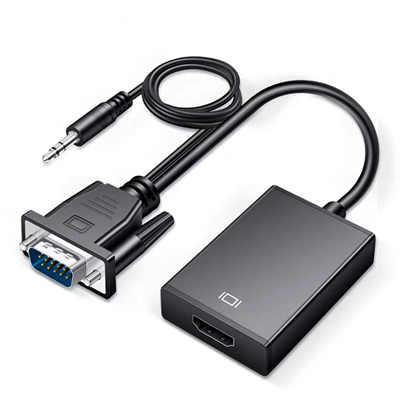
Many VGA-to-HDMI adapters draw power from the VGA source or through a separate USB cable. If the adapter isn’t getting enough juice, the conversion chip can’t function correctly. This often manifests as intermittent signal loss, flickering, or color distortion — including a green cast.
A user on the EEVblog forums noted that their GANA 1080P Full HD adapter produced washed-out colors, and the troubleshooting discussion immediately turned to power and signal integrity. In some cases, connecting the adapter’s USB power cable (if it has one) resolves the issue entirely.
5. HDCP Incompatibility (Less Common, but Possible)
HDCP (High-bandwidth Digital Content Protection) is a copy-protection scheme used on HDMI connections. Many inexpensive VGA-to-HDMI adapters don’t support HDCP at all. If you‘re trying to play protected content — like a Blu-ray movie or a streaming service — the lack of HDCP handshake can trigger a green screen or a “no signal” message.
Step-by-Step Fixes: From Simple to Advanced
Let’s get that green screen sorted. Work through these steps in order — most issues resolve at the earlier stages.
Fix 1: Check Your Physical Connections
This sounds almost too obvious to mention, but it resolves a surprising number of cases. Loose connections and oxidized pins are notorious for dropping color channels.
- Unplug the VGA cable from both ends and plug it back in firmly.
- Inspect the VGA connector pins. Are any bent, broken, or discolored?
- Try a different VGA cable if you have one. Cable quality varies wildly, and a marginal cable can cause signal degradation.
- If you‘re using a USB-powered adapter, make sure the USB cable is securely connected to a powered port — not just a low-power USB port on a keyboard or monitor.
One user on Stack Overflow fixed their green screen issue simply by “wiggling the cable,” which restored the missing color channels.
Fix 2: Match the Resolution
This is the second most common fix and often the one people overlook.
- On your computer, go to display settings.
- Lower the resolution to something your display definitely supports — try 1280×720 or 1024×768 as a starting point.
- Set the refresh rate to 60Hz.
- If you‘re using Windows, press
Windows + Pand select “Duplicate” or “Extend” to force the external display to negotiate properly. - For laptops, try the function key combo (often
Fn + F8or similar) to switch display modes.
Here’s the key insight from the Spiceworks case: the LKV350 converter had no built-in video scaler, meaning the output resolution had to match the input resolution exactly. Many cheap adapters work the same way — they convert the signal but don‘t scale it. If your display doesn’t support the resolution your computer is sending, you‘ll get a green screen or no picture at all.
Fix 3: Test with Another Display or Device
This step helps you isolate whether the problem is with the source, the adapter, or the display.
- Connect your computer directly to a VGA monitor (without the adapter). If the picture looks normal, the issue is with the adapter or the HDMI display.
- Try the adapter with a different computer or laptop. If it works, the problem is with your original source‘s VGA output.
- Try a different HDMI port on your TV or monitor.
In one Tom’s Hardware thread, a user swapped in a different GPU and the green tint persisted, which pointed the finger at either the VGA cable or the monitor itself. They eventually replaced the monitor and the problem disappeared.
Fix 4: Power the Adapter Properly
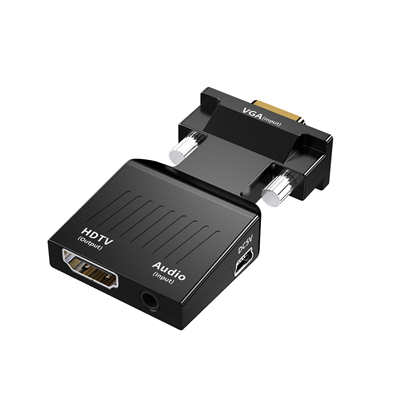
If your adapter has a micro-USB or USB-C power port, use it — even if the adapter seems to work without it.
- Plug the USB cable into a wall charger or a powered USB hub, not just the computer‘s USB port.
- If the adapter draws power from the VGA source, try a shorter VGA cable. Longer cables introduce more resistance and can cause voltage drops.
- Consider using a VGA cable with more cores. VGA cables come in 3+4, 3+6, and 3+9 configurations — the higher the number, the better the signal integrity.
A user on STC-Cable‘s forum reported that their HDMI-to-VGA converter worked perfectly with one device but produced intermittent signal loss with another — until they connected the power supply line, after which everything stabilized.
Fix 5: Update Your Graphics Drivers
Sometimes the problem isn’t the adapter at all — it’s how your computer is handling the output.
- Update your GPU drivers (Intel, NVIDIA, or AMD).
- Check if your graphics control panel has options for color output format. Some users have resolved green tint issues by forcing RGB Full range instead of YCbCr.
- On older systems, you may need to enable legacy video output modes in the BIOS.
Fix 6: Replace the Adapter
If you‘ve tried everything above and you’re still staring at a green screen, the adapter itself may be faulty. This is particularly common with ultra-cheap adapters from no-name brands.
- Buy from a reputable brand — StarTech, UGREEN, and Monoprice all make reliable converters.
- Look for an adapter with an external power option. Active converters (ones that actively process the signal) tend to be more reliable than passive ones.
- Check reviews specifically for compatibility with your hardware. Some adapters work fine with modern PCs but struggle with older equipment that outputs non-standard VGA signals.
One 68kMLA user upgraded from a cheap USB-powered VGA-to-HDMI adapter to a StarTech VGA2HD2 — and while they still encountered issues, the quality difference was notable. Another user on Stack Overflow fixed their problem by replacing a faulty HDMI-to-VGA cable with a proper converter.
Fix 7: Address Sync-on-Green (For Retro Hardware)
If you‘re connecting a vintage Mac, SGI workstation, or other SoG-outputting system, standard fixes may not work. The green tint is baked into the signal itself.
- Look for an adapter specifically designed to handle Sync-on-Green signals. Some higher-end converters include sync-stripping circuitry.
- Use a sync separator circuit. One forum user referenced an Instructables guide for stripping green tint from PS2 signals, and similar principles apply to VGA.
- Try different DIP switch settings on your VGA adapter if it has them. Some Mac-to-VGA adapters have multiple settings that can mitigate the issue.
Prevention: How to Avoid Green Screen Issues in the Future
Once you‘ve fixed the problem, here’s how to keep it from coming back:
- Buy quality cables. A good VGA cable with proper shielding and full pin-out makes a measurable difference.
- Match resolutions before connecting. Set your output resolution to something your display can handle before you plug in the adapter.
- Use powered adapters when possible. Active converters with external power are more stable than passive ones.
- Keep connectors clean. Dust and oxidation on VGA pins can cause intermittent color loss.
- Read the specs. Not all adapters support all resolutions. Check the maximum supported resolution before buying.
The Bottom Line
A green screen from a VGA-to-HDMI adapter is frustrating, but in the vast majority of cases, it‘s fixable without buying new hardware. Start with the physical connections — loose cables and bent pins cause more problems than people realize. If that doesn’t work, match your resolution and refresh rate to what your display actually supports. And if you‘re dealing with vintage hardware that outputs Sync-on-Green, you may need a specialty adapter or a sync-stripping solution.
The analog-to-digital bridge isn’t always seamless, but with a systematic approach, you can usually get that green screen to turn into the picture you were expecting.
Frequently Asked Questions
Q: Why does my VGA-to-HDMI adapter show a green screen?
A: The most common causes are a lost red or blue color channel due to a loose connection or damaged cable, a resolution mismatch between your computer and display, or a Sync-on-Green signal from older hardware that the adapter can‘t handle properly.
Q: Can a bad VGA cable cause a green screen?
A: Yes. A damaged or low-quality VGA cable can drop the red and blue color channels, leaving only green. Try swapping the cable for a known-good one.
Q: Do I need a powered VGA-to-HDMI adapter?
A: Not always, but powered adapters (ones with a USB power input) tend to be more stable, especially with longer cables or higher resolutions. If your adapter has a power port, use it.
Q: Will changing the resolution fix the green screen?
A: Often, yes. Set your computer‘s output resolution to something your display definitely supports — try 1280×720 or 1024×768 at 60Hz — and see if the green tint disappears.
Q: What is Sync-on-Green and why does it cause problems?
A: Sync-on-Green is a signal format used by some older computers (especially Macs and SGI workstations) where sync information is carried on the green video channel. Most standard VGA-to-HDMI converters interpret this as part of the green signal, resulting in a green-tinted display.
Q: Is HDCP causing my green screen?
A: Possibly, if you‘re trying to play copy-protected content. Many inexpensive VGA-to-HDMI adapters don’t support HDCP. Try playing non-protected content to rule this out.
Q: Should I just buy a new adapter?
A: After trying cable checks, resolution matching, and power troubleshooting, if the green screen persists, a faulty adapter is likely. Buy from a reputable brand with good reviews.
📖 Related Featured Articles

10 Ways to Use a VGA to HDMI Converter Bridging Analog-Digital Divide
Discover 10 practical ways to use a VGA to HDMI converter—from classrooms and conference rooms to di...

Can I connect VGA to HDMI without a converter? - WinFitin
Can you connect VGA to HDMI without a converter? We examine signal types, voltage differences, data ...

VGA to HDMI Converter Not Working? 8 Proven Fixes for a Blank Screen
VGA to HDMI converter not working? Fix blank screens, no signal, and compatibility issues with these...

Why Your VGA to HDMI Converter Needs USB Power (And What Happens If You Skip It)
Discover why your VGA to HDMI converter requires USB power, the technical reasons behind active sign...