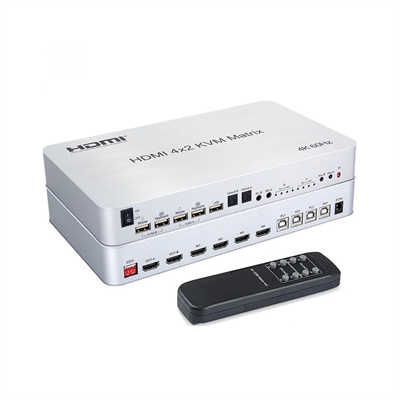
How to Set Up a 4x4 HDMI Matrix for a Home Automation System
#Summary: A comprehensive, step-by-step guide to installing and integrating a 4x4 HDMI matrix into a smart home ecosystem. It covers hardware selection, wiring, EDID management, RS-232/IP control, integration with platforms like Home Assistant and Control4, and the most common troubleshooting pitfalls that trip up even experienced AV installers.
Introduction
A 4x4 HDMI matrix is, at its core, a traffic cop for your video signals. It takes four input sources—a cable box, a streaming stick, a game console, a media server—and routes any of them to any of four displays, independently. One person can watch a ballgame in the living room while another streams a movie in the bedroom, all from the same rack of equipment. That flexibility is precisely why matrix switches have become a staple in mid-to-high-end home automation installations.
The global matrix switch market was valued at approximately USD 2.1 billion in 2025 and is projected to reach USD 3.8 billion by 2034, growing at a CAGR of about 7.3%. The HDMI matrix switcher segment alone was valued at around USD 1.86 billion in 2024 and is expected to grow to USD 3.5 billion by 2035, with a CAGR of roughly 5.9%. That growth is driven largely by residential demand—home theaters, multi-room AV, and the broader smart home ecosystem.
But here is the thing: a 4x4 matrix is not a plug-and-play device. It sits in the middle of a chain of HDMI handshakes, EDID negotiations, CEC commands, and control protocols. Get the setup right, and it disappears into the background. Get it wrong, and you will spend weekends chasing black screens and dropped audio.
This guide walks through the full process, from hardware selection to control system integration to the troubleshooting steps that actually work.
Why a 4x4 Matrix Makes Sense in a Home Automation System
The Multi-Room Problem
Most homes have more screens than sources. You might have one cable box, one Apple TV, one Blu-ray player, and one gaming console, but four televisions scattered across the house. Without a matrix, you either duplicate every source (expensive) or move devices around (impractical). A 4x4 matrix lets you share those sources without compromise.
Centralized Equipment, Decentralized Viewing
The matrix lives in a rack or closet, connected to sources locally and to displays via HDMI runs or HDBaseT over Cat5e/6. That means the noisy, heat-generating equipment stays out of living spaces. From the user’s perspective, every TV simply has access to every source, controlled through a remote, a wall panel, or a smartphone app.
Integration Is the Whole Point
A matrix that cannot talk to your automation system is just a switch with a remote. The real value comes from integration: a “Movie Night” scene that routes the Blu-ray to the living room, dims the lights, and switches the AVR input; a morning routine that sends the news to the kitchen TV. That requires a control pathway—RS-232, IP, or IR—and a driver for your automation platform.
Hardware Selection: What Actually Matters
Inputs, Outputs, and Bandwidth
A 4x4 matrix gives you four HDMI inputs and four HDMI outputs. For modern 4K sources, look for HDMI 2.0 compliance with 18Gbps bandwidth, support for HDCP 2.2, and HDR10 and Dolby Vision pass-through. If you have older 1080p displays mixed with 4K panels, a matrix with built-in downscaling (4K to 1080p) is worth the premium.
HDBaseT vs. Direct HDMI
Direct HDMI runs beyond 15 feet are unreliable. For displays more than 20–30 feet from the matrix, HDBaseT is the standard solution. A single Cat5e/6 cable carries video, audio, Ethernet, and control up to 100 meters (about 328 feet). HDBaseT matrices are more expensive, but they eliminate the need for active HDMI cables or extenders on every run.
EDID Management: The Feature You Will Use More Than You Think
EDID (Extended Display Identification Data) is how a display tells a source what resolutions and audio formats it supports. In a matrix, multiple displays with different capabilities create a conflict: if the source sees the 1080p TV’s EDID, it will not send 4K to the 4K TV. A matrix with per-input EDID management lets you set a fixed EDID profile—or a “smart” EDID that presents a compatible set of capabilities to the source.
Look for a matrix with at least 10–20 EDID presets. Some models offer 40 or more. You will not need all of them, but having options for 4K HDR, 1080p, and audio-only scenarios saves hours of frustration.
Control Options: RS-232, IP, and IR
For home automation, RS-232 and IP are the two control pathways that matter. RS-232 is a serial protocol—reliable, well-documented, and supported by virtually every automation platform. IP control uses the network, which means you can place the matrix anywhere with an Ethernet drop. Many matrices support both, plus IR for a handheld remote as a fallback.
Physical Setup: Step by Step
Step 1: Power Everything Down
Turn off the matrix, all source devices, and all displays. HDMI handshakes are sensitive to hot-plugging, and starting from a clean state avoids EDID caching issues.
Step 2: Connect Sources to Inputs
Use high-quality HDMI cables rated for 18Gbps. Keep input runs short—under 6 feet if possible. Label both ends. A label maker costs $30 and saves an hour of cable tracing later.
Step 3: Connect Displays to Outputs
If you are using HDBaseT, connect the matrix’s HDBaseT outputs to the receivers at each display using Cat5e/6. Terminate to T568B standard and test each cable run before connecting equipment. For direct HDMI runs, use active optical cables for distances over 15 feet.
Step 4: Power On in Sequence
Power on the matrix first, then the displays, then the sources. This order gives the matrix time to read display EDIDs before sources attempt to negotiate. If a source shows no signal, power-cycle it after the matrix and display are fully booted.
Step 5: Configure EDID Before You Route Signals
Access the matrix’s web UI or front-panel menu and set the EDID profile for each input. If your sources are 4K and your displays are a mix of 4K and 1080p, set a 4K EDID with downscaling enabled on the 1080p outputs. If audio is routed to an AVR via SPDIF, set an EDID that advertises the audio formats your AVR supports.
Integrating with Home Automation Platforms
RS-232: The Universal Language
RS-232 remains the most reliable control method for matrix switches. The matrix accepts text commands over a serial connection—typically via a USB-to-RS232 adapter connected to a Raspberry Pi, a control processor, or a home automation controller.
A typical command format is a short ASCII string followed by a carriage return. For example, to switch output zone 2 to input 3 on some matrices, you send something like 2v3. or a hexadecimal equivalent. The exact protocol varies by manufacturer, but the principle is consistent: send a command, receive an acknowledgment, query state when needed.
For Home Assistant, the pattern is well-established. A user on the Home Assistant community forum described a setup where a Raspberry Pi runs a small server that talks to the matrix over RS-232, and Home Assistant sends RESTful commands to that server. Another approach uses the ESPHome route, connecting an ESP8266 or ESP32 to the matrix’s serial port and exposing it as a native Home Assistant entity.
IP Control: Cleaner, But Not Always Easier
IP control uses TCP sockets, which means the matrix appears on your network as a device with an IP address and a port. The command protocol is often identical to RS-232, just wrapped in TCP packets. The advantage is that you do not need a serial adapter or a dedicated cable run—just a network drop.
The trade-off is reliability. Some budget matrices have flaky IP stacks that drop connections after a few hours. If you go the IP route, test stability over 48 hours before relying on it for automation.
Home Assistant: A Practical Example
The Orei HDMI matrix integration for Home Assistant is a good reference for what a well-designed integration looks like. It supports automatic model detection, global power control, per-zone source selection as media players, and live state updates over Telnet. Installation is through HACS or manual file copy, and configuration happens entirely in the UI—no YAML required.
Once configured, each output zone appears as a media_player entity. You can then build automations: when the living room TV turns on, set its source to the Apple TV; when the bedroom TV turns on after 10 PM, set its source to the media server and lower the volume. The matrix becomes an invisible part of the scene logic.
Control4: Driver-Based Integration
Control4 integration is driver-based. You add the matrix driver to your Control4 project, bind the audio and video connections, and the matrix’s inputs and outputs appear as routable sources and displays. Some drivers expose variables like VIDEO_OUTPUT_XX_INPUT that show which input is currently routed to which output, and you can enable “Query for Switch Status” to keep the Control4 UI in sync with changes made on the matrix itself.
One caveat: Control4 does not officially support HDMI ARC. If you are routing audio back from a TV to an AVR through the matrix, you will need to handle that outside the Control4 binding model, typically using CEC drivers or a separate audio return path.
Crestron: Deeper Integration, More Complexity
Crestron’s DigitalMedia platform offers native matrix switching with HDMI, DVI, and HDBaseT inputs, but it is a different class of system. A Crestron DM matrix is not a third-party device you integrate—it is part of the Crestron ecosystem, programmed in SIMPL or Crestron Home. For homeowners already committed to Crestron, the integration is seamless. For everyone else, a third-party matrix with RS-232 control is the more practical path.
EDID Management in Practice
The Problem EDID Solves
Imagine this: a 4K Apple TV, a 1080p bedroom TV, and a 4K living room TV all connected to the same matrix. Without EDID management, the Apple TV reads the bedroom TV’s EDID (or a merged EDID from all displays), concludes that 4K is not supported, and outputs 1080p everywhere. The living room TV never gets its full resolution.
The Solution: Per-Input EDID Profiles
With EDID management, you assign a fixed EDID profile to the Apple TV’s input. That profile says “4K HDR, 5.1 audio, HDCP 2.2.” The Apple TV outputs 4K. The matrix downscales to 1080p for the bedroom TV. The living room TV gets native 4K.
When to Use EDID Bypass
Some sources—particularly older cable boxes and certain media players—misbehave when they see a custom EDID. If a source refuses to output or shows intermittent signal drops, try EDID bypass mode, which passes the display’s native EDID directly to the source. This works only when all displays on that input have compatible capabilities, but it is a useful fallback.
Audio EDID Considerations
If you are extracting audio to an AVR via SPDIF or analog, set the EDID to advertise only the formats your AVR supports. Sending Dolby TrueHD to an AVR that only handles Dolby Digital will result in silence or downmixed stereo. Most matrices with audio extraction let you select 2CH, 5.1CH, or 7.1CH EDID profiles.
CEC and ARC: The Troubleshooting Zone
CEC: Useful, Fragile, and Often Disabled by Default
HDMI-CEC (Consumer Electronics Control) lets devices control each other—turning on a TV when a source activates, switching inputs, adjusting volume. In a matrix setup, CEC is a double-edged sword. It can simplify control, but it can also cause chaos: one device’s power command cascades through the matrix and turns on every display in the house.
The pragmatic approach: disable CEC on every device first. Then, if you need CEC for a specific function (like TV power-on from a source), enable it selectively. A common recommendation is to disable CEC on all devices except the TV and soundbar, then test compatibility incrementally.
ARC: The Matrix Is Not Your Friend
ARC (Audio Return Channel) sends audio from a TV back to an AVR over the same HDMI cable. In a matrix setup, ARC is problematic because the matrix sits between the TV and the AVR. Most matrices do not pass ARC through the switching fabric. Some have dedicated ARC outputs, but those are typically limited to a single display.
If you need TV audio routed back to an AVR, the reliable solution is a separate audio path—either an optical cable from the TV to the AVR or an HDMI ARC extractor at the TV location. Trying to force ARC through a matrix is a recipe for silence and frustration.
Common Fixes That Actually Work
- No signal after switching: Power-cycle the source. HDMI handshakes sometimes fail during matrix routing changes, and a source reboot forces a fresh negotiation.
- Audio drops when switching: Set a fixed EDID for the input rather than relying on auto-detection. Auto-EDID renegotiates every time the route changes, which can cause brief audio gaps.
- Intermittent black screens: Check HDBaseT cable terminations. A marginal punch-down can cause link training failures that show up as random dropouts.
- CEC commands leaking across zones: Disable CEC on all devices, then re-enable only where needed. If a device lacks a CEC disable option, an HDMI CEC-less adapter (a small dongle that blocks pin 13) can isolate it.
Market Context: Why This Matters Now
The home automation AV distribution market is not niche anymore. The broader matrix switch market is growing at 7.3% annually, and the HDMI matrix segment is expanding at nearly 6% per year. That growth is fueled by falling prices for 4K matrix hardware, the maturation of HDBaseT as a reliable distribution standard, and the increasing expectation that a smart home should route video as easily as it routes audio.
For homeowners, the practical implication is that a 4x4 matrix is no longer a luxury item. Entry-level 4K matrices with RS-232 control are available for a few hundred dollars. The integration effort is the real investment, not the hardware.
FAQ
What is the difference between a 4x4 HDMI matrix and a 4x4 HDMI splitter?
A splitter sends one input to multiple outputs simultaneously. A matrix lets you route any input to any output independently. If you need different sources on different TVs at the same time, you need a matrix, not a splitter.
Can I control a 4x4 HDMI matrix with a universal remote?
Yes, if the matrix has an IR receiver and the remote has a compatible code set. But for home automation integration, RS-232 or IP control is strongly preferred because it allows two-way communication and scene-based automation.
Do I need HDBaseT for a 4x4 matrix installation?
Only if your displays are more than 20–30 feet from the matrix. For shorter runs, direct HDMI or active optical HDMI cables work fine. HDBaseT is the better choice for whole-home installations where cable runs go through walls and ceilings.
Why does my 4K source output 1080p through the matrix?
This is almost always an EDID issue. The source is reading a 1080p EDID from one of the displays and concluding that 4K is not supported. Set a fixed 4K EDID profile for that input and restart the source.
Does a 4x4 HDMI matrix support Dolby Vision?
It depends on the matrix. Some support Dolby Vision pass-through, but downscaling and Dolby Vision are often mutually exclusive. A user review of the AV Access 4x4 matrix noted that Dolby Vision works only on 4K outputs and is not supported in downscaler mode. Check the specifications before buying if Dolby Vision is a requirement.
Can I use a 4x4 matrix with a soundbar?
Yes, but audio routing requires planning. If the soundbar is connected to one TV, you can extract audio from that output. If you want the soundbar to handle audio from multiple sources, route audio through an AVR instead, or use a matrix with dedicated audio extraction outputs.
How do I update firmware on a 4x4 HDMI matrix?
Most matrices update via a web UI or a USB port. Firmware updates can fix EDID compatibility issues, improve HDBaseT stability, and add new control commands. Check the manufacturer’s website before assuming your matrix is broken—sometimes a firmware update is the fix.
📖 Related Featured Articles

Using a 2x2 HDMI Matrix for Dual Monitor Productivity: A Practical Guide
Learn how a 2x2 HDMI matrix switch can streamline your dual monitor workflow. Covers productivity da...

HDMI Matrix for Art Installations and Museums: A Complete Technical Guide
How museums and art installations use HDMI matrix switchers for 4K video distribution, video walls, ...

What Is an HDMI Matrix? The Ultimate Flexibility for Multi-Screen Setups
A complete guide to HDMI matrix switchers: how they work, how they differ from splitters and switche...

HDMI Matrix with HDBaseT: A Complete Guide to Extending AV Signals Over Long Distances
Learn how HDMI matrix switchers with HDBaseT extend uncompressed 4K AV signals up to 100m over Cat6 ...