Using a 2x2 HDMI Matrix for Dual Monitor Productivity: A Practical Guide
Abstract
A 2x2 HDMI matrix switch is a compact, affordable piece of hardware that lets you route two HDMI sources to two displays — independently. For dual monitor productivity, that means you can keep a work laptop on one screen while a personal desktop or gaming console feeds the second, switching inputs on the fly without crawling under your desk. Research consistently shows that dual monitors boost productivity by roughly 42%, with text-heavy tasks improving by as much as 44% and spreadsheets by 29%. This article explains how a 2x2 matrix fits into a productivity workflow, what to look for in terms of EDID, resolution, and switching modes, and how it differs from a KVM switch. It also covers practical setup steps, real-world scenarios, and the limitations you should know before buying.
Why Dual Monitors Actually Matter
The case for a second screen is not just anecdotal. Jon Peddie Research has tracked multi-monitor productivity for over fifteen years, and their headline finding has stayed remarkably stable: users of multiple monitors report an average expected productivity increase of 42%. That figure has held across survey waves in 2012 and 2017, which suggests it is not a one-off result.
Drilling into specific tasks, a Dell white paper found something more granular. Workers moving from a single screen to a dual-monitor setup showed a 44% boost in productivity for text tasks and a 29% rise for spreadsheet tasks. The gain is not uniform — it depends on what you do — but the direction is consistent. A New York Times piece went further, claiming dual monitors helped users complete tasks as much as 52% faster, saving up to 2.5 hours a day.
That said, not every configuration is equal. Anderson’s 2007 study compared single 20-inch monitors, dual 20-inch monitors, and a single 24-inch widescreen. The single 24-inch held its own for most tasks, but dual monitors retained a slight edge for spreadsheet work because of their layout suitability. Dual 20-inch monitors also outperformed dual 18-inch monitors, which reinforces a simple point: size matters alongside count.
A 2024 University of Arkansas study added an ergonomic caveat. Dual monitors did provide performance benefits, but they also introduced more neck strain than ultra-wide alternatives, particularly in L-shaped layouts. So while the productivity case is strong, the physical setup deserves attention. A 2x2 HDMI matrix does not solve ergonomics by itself, but it does make it easier to route the right signals to the right screens without unplugging anything.
What a 2x2 HDMI Matrix Actually Does
The terminology around HDMI gear gets muddled quickly. A switch lets several sources feed one screen. A splitter duplicates one source to several screens. A matrix — and this is the key distinction — routes several sources to several outputs, and each output can be assigned independently.
A 2x2 matrix has two inputs and two outputs. That is modest on paper, but for a dual-monitor desk it covers a surprising number of scenarios. You might have a work laptop and a personal desktop. With a 2x2 matrix, output A can show the laptop while output B shows the desktop. Or both outputs can show the same source when you want mirrored content. You do not have to use every port just because the hardware provides it.
The important limitation: a matrix does not create extra computer desktops. It routes signals. If your laptop only supports one external display natively, a 2x2 matrix will not magically give it two extended screens. You still need a graphics adapter, docking station, or a computer with multiple video outputs. The matrix sits downstream of that.
That distinction matters because people sometimes buy a matrix expecting it to behave like a docking station. It will not. What it will do is eliminate cable swapping. Instead of reaching behind monitors to move an HDMI cable from one machine to another, you press a button or use a remote.
How a 2x2 Matrix Compares to a KVM Switch
This is probably the most common point of confusion. Both devices route video, but they solve different problems.
An HDMI matrix routes video and audio. A KVM system goes further — it also handles keyboard, mouse, and often USB peripherals, so a single set of controls can operate whichever computer is currently selected. If your goal is simply to decide which screen shows which computer, a matrix is sufficient. If you want to use one keyboard and mouse across two machines without moving them, you need KVM functionality.
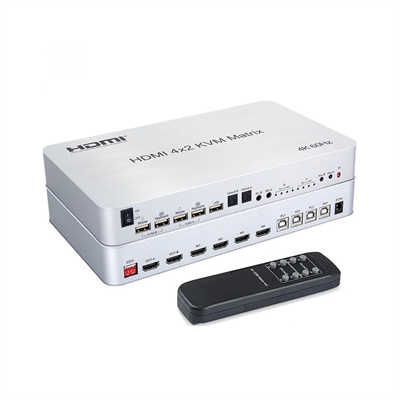
There are hybrid devices on the market: 2x2 HDMI matrix KVM switches that combine routing with peripheral sharing. These are useful when you want both independent display routing and a single control surface. But they cost more and introduce additional complexity. For a straightforward dual-monitor productivity setup where each machine has its own keyboard and mouse, a plain matrix is often the cleaner choice.
The other comparison worth making is against a docking station. A USB-C dock with dual HDMI outputs can feed two monitors from a single laptop, and many modern docks handle 4K at 60Hz without issue. But a dock does not let you bring a second computer into the mix without unplugging. A matrix does. If your workflow involves a work laptop and a personal machine sharing the same two displays, the matrix earns its place alongside the dock.
EDID Management: The Feature You Should Not Ignore
EDID — Extended Display Identification Data — is the handshake protocol that lets a source know what resolutions and audio formats a display can handle. When that handshake fails, you get blank screens, flickering, or stuck resolutions. It is the single most common source of frustration with budget HDMI switches.
A good 2x2 matrix includes EDID management. The StarTech VS222HDQ, for example, offers EDID Copy positions that let you copy audio only, video only, or both from output 1, maintaining the native resolution while switching between sources. More advanced units from ATEN and KanexPro offer multiple factory presets, user-defined EDID modes, and copy-from-output capability to resolve handshake issues in mixed environments.
If you are running two different monitors — say a 4K display and a 1080p display — EDID management becomes essential. Without it, the source may default to the lowest common denominator, and your 4K screen will suddenly look like it belongs in 2010. The matrix needs to present a consistent EDID to each source, or at least give you a way to force one. This is not a luxury feature. For a productivity setup, it is table stakes.
Resolution, Bandwidth, and the 4K Question
Not all 2x2 matrices are equal on bandwidth. Entry-level units often cap at 1080p, while mid-range models support 4K at 60Hz with 4:4:4 chroma subsampling and HDR passthrough. At the high end, you will find 8K60 matrices with HDMI 2.1, 40Gb/s bandwidth, and support for VRR and ALLM.
For dual monitor productivity — spreadsheets, documents, code, video calls — 4K at 60Hz is more than sufficient. You do not need 8K for text. But you do need enough bandwidth to avoid chroma subsampling artifacts, especially if you work with color-sensitive content. A matrix that supports 4K60 4:4:4 will look noticeably sharper on fine text than one that drops to 4:2:0.
The practical consideration is cable quality. HDMI 2.0 and 2.1 matrices demand certified cables, especially for runs over a few feet. A matrix that supports 18Gbps but is fed by a cheap cable will negotiate down to a lower bandwidth. This is not the matrix’s fault, but it is a real-world failure mode worth planning around.
Price-wise, the category spans a wide range. Budget 4K60 2x2 matrices from OREI and similar brands sit around $60–$100, while StarTech units with EDID emulation and serial control run closer to $160–$180. The 8K tier, such as the BZBGEAR 8K-22MA, is around $299. For a productivity desk, the mid-range is usually the sweet spot: you get reliable EDID handling and 4K60 without paying for gaming features you will not use.
Setting Up a 2x2 Matrix for a Dual Monitor Desk
The physical setup is straightforward. Connect output 1 and output 2 on the matrix to your two monitors. Connect input 1 and input 2 to your two source devices. Power on the displays first, then the sources — this sequence helps the EDID handshake complete cleanly.
From there, you configure the switching mode. StarTech’s manual describes four modes that are fairly representative of the category:
- Manual mode: You press a button to toggle each display between inputs. This is the mode most people will use for dual-monitor productivity. Display A stays on the work laptop, display B switches to the personal desktop when needed.
- Priority mode: One input is prioritized, and switching only happens when the other device is powered on. This is useful if you have a always-on machine that should occupy a screen by default.
- Automatic mode: The matrix switches to the most recently activated source. Convenient for media setups, but potentially annoying in a work context where you do not want the screen flipping because a console woke from sleep.
- Matrix mode: Each display is independently assigned to an input. This is the true matrix behavior and the most flexible for mixed-source workflows.
For a productivity setup, manual or matrix mode is almost always the right choice. Automatic switching sounds convenient until your second monitor jumps to a game console because it detected a signal. Manual control keeps you in charge.
One more tip: label your inputs. Most matrices have front-panel indicators, but a strip of masking tape on the input cables saves time when you are troubleshooting. It is low-tech, but it works.
Real-World Scenarios Where a 2x2 Matrix Pays Off
The hybrid worker. You have a work-issued laptop and a personal desktop sharing two monitors. Without a matrix, you unplug and replug HDMI cables every time you switch context. With a 2x2 matrix, both machines stay connected and you change the routing with a button press. The time saving is small per switch, but over a week it adds up — and the reduction in cable wear is real.
The developer with a test machine. A primary workstation feeds one monitor, while a secondary machine for builds or testing feeds the other. When you need to see the test output on the main screen, you route it there without moving hardware. The matrix becomes a patch panel for your desk.
The content creator with a console. A gaming console and a PC share a monitor and a capture display. The matrix lets you send the console to the capture screen while keeping the PC on the main display, then flip when you are done. EDID management matters here because consoles are picky about what they see on the other end.
The small office with a shared display. A conference room monitor and a desk monitor can be fed from a laptop and a media player independently. A 2x2 matrix is cheaper and simpler than running two separate switches.
Limitations and Trade-Offs
A 2x2 matrix is not a universal solution. It does not extend cable runs — HDMI over a few meters is fine, but for longer distances you need HDMI over Cat6 or an extender. It does not add USB switching unless you buy a KVM-integrated model. And it does not create display outputs that your computer does not already have.
There is also the question of remote control. Some matrices ship with IR remotes; others rely on front-panel buttons or RS-232 serial control. If the matrix lives on your desk, buttons are fine. If it lives behind a monitor or under a desk, a remote or serial control becomes more important. The StarTech VS222HD4K supports serial control, which is overkill for a home office but useful in a rack or a studio.
Finally, consider the power supply. Most 2x2 matrices use a small external power adapter. That is another outlet consumed and another cable to manage. It is a minor annoyance, but it is worth noting if your desk already looks like a cable management cautionary tale.
Frequently Asked Questions
Can a 2x2 HDMI matrix give me dual monitors on a laptop that only supports one external display?
No. The matrix routes existing signals. It does not create additional display outputs. If your laptop natively supports only one external monitor, you need a graphics adapter or docking station to add a second output before the matrix can route it.
What is the difference between a 2x2 HDMI matrix and a 2x2 HDMI switch?
A switch lets multiple sources feed one display. A matrix lets multiple sources feed multiple displays, with each output independently assignable. A 2x2 switch would only control one screen; a 2x2 matrix controls two screens independently.
Do I need EDID management for dual monitors?
If your two monitors have different native resolutions or capabilities, yes. EDID management prevents the source from defaulting to a lower resolution or failing the handshake altogether. Even with matched monitors, EDID copy can reduce blank-screen delays during switching.
Can I use a 2x2 matrix with a KVM switch?
Yes, but the order matters. Typically you would run the KVM output into the matrix input. If you need both video routing and peripheral sharing, a combined matrix-KVM unit may be simpler than stacking two devices.
Will a 2x2 HDMI matrix work with 4K at 60Hz?
It depends on the specific model. Budget units often cap at 4K30 or 1080p. Look for a matrix rated for HDMI 2.0 with 18Gbps bandwidth and 4K60 4:4:4 support if 4K60 is a requirement. HDMI 2.1 matrices handle 8K60 but cost significantly more.
Does a matrix introduce latency?
Quality matrices add negligible latency — typically under a frame. Budget units may introduce a brief delay during switching, but for productivity work this is not noticeable. The bigger concern is EDID handshake time, which can cause a few seconds of blank screen when changing inputs.
Conclusion
A 2x2 HDMI matrix is a small, unglamorous piece of hardware. It does not increase your screen real estate, and it does not replace a good docking station. But for the specific problem of routing two sources to two screens without cable swapping, it is difficult to beat on price and simplicity. The productivity research is clear that dual monitors deliver meaningful gains — 42% on average, with task-specific improvements in the 29–44% range. A matrix does not create those gains; it removes the friction that keeps you from using the setup you already have.
The key specifications to prioritize are EDID management and 4K60 support. Skip the 8K models unless you have a specific need. Choose a matrix with manual or matrix-mode switching rather than relying on automatic input detection. And make sure your computer actually supports the display outputs you are trying to route. Get those things right, and the matrix becomes invisible — which, for infrastructure hardware, is exactly what you want.
📖 Related Featured Articles

How to Set Up a 4x4 HDMI Matrix for a Home Automation System
Learn how to set up a 4x4 HDMI matrix for your home automation system. This guide covers hardware se...

HDMI Matrix for Art Installations and Museums: A Complete Technical Guide
How museums and art installations use HDMI matrix switchers for 4K video distribution, video walls, ...

What Is an HDMI Matrix? The Ultimate Flexibility for Multi-Screen Setups
A complete guide to HDMI matrix switchers: how they work, how they differ from splitters and switche...

HDMI Matrix with HDBaseT: A Complete Guide to Extending AV Signals Over Long Distances
Learn how HDMI matrix switchers with HDBaseT extend uncompressed 4K AV signals up to 100m over Cat6 ...