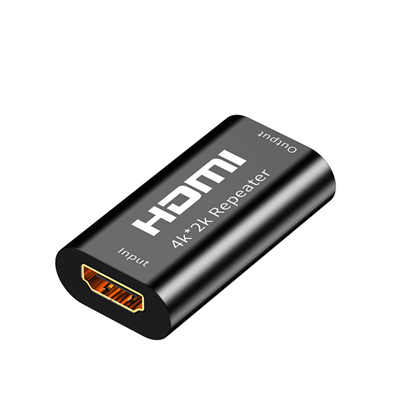
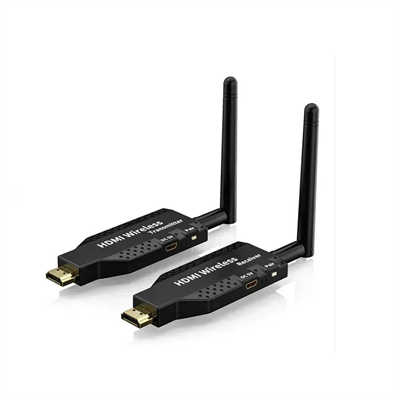
HDMI KVM Extenders: The Complete Guide to Controlling Your PC from Hundreds of Feet Away
Summary
HDMI KVM extenders let you control a computer from up to 390 feet or more by transmitting video, audio, and USB signals over a single Ethernet cable. This guide covers how they work, the different technologies available (HDBaseT, IP-based, and fiber optic), what to look for when buying one, and real-world performance data so you can choose the right solution for your setup.
Introduction
For years, I kept my workstation right under my desk—fans roaring, heat radiating, and the constant hum of the GPU grinding away at my focus. In winter, it was a tolerable space heater; in summer, it was unbearable. But moving the PC to a server closet or basement meant sacrificing 4K clarity and the instantaneous response of my keyboard and mouse. Traditional HDMI cables start failing after about 25 feet, and passive USB extenders are practically a recipe for lag and dropped connections.
That is precisely where HDMI KVM extenders come in. These devices let you relocate your computer hundreds of feet away while maintaining full control over your display, keyboard, mouse, and even peripherals like webcams or external drives. Whether you are a video editor, a gamer, a system administrator, or simply someone who wants a quieter, cooler office, HDMI KVM extenders offer a solution that actually works.
What Is an HDMI KVM Extender?
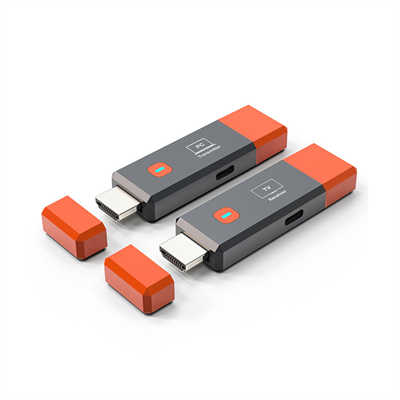
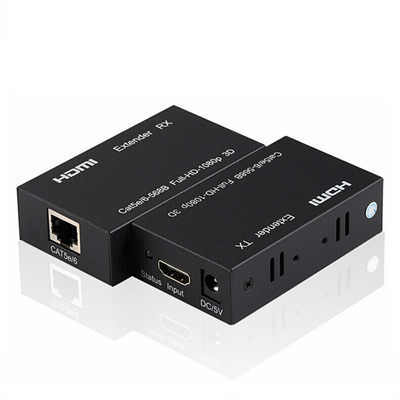
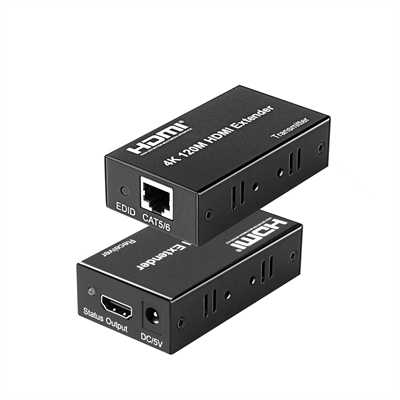
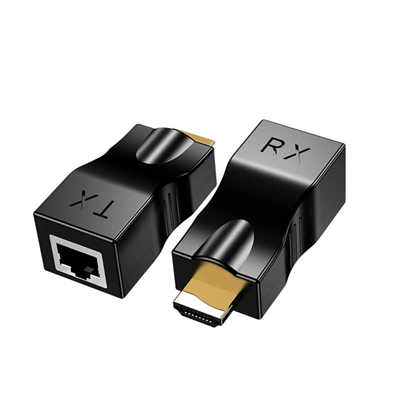
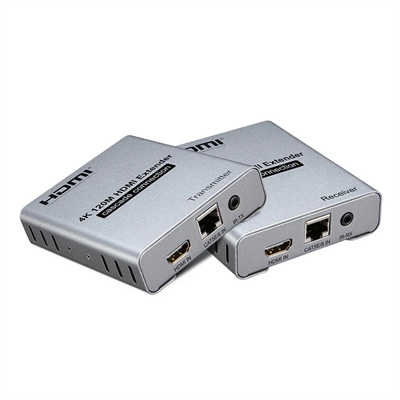
A KVM extender—short for Keyboard, Video, Mouse—is a pair of devices (transmitter and receiver) that send HDMI video, audio, and USB signals over long distances using standard cabling. The transmitter connects to your computer; the receiver sits at your desk with your monitor, keyboard, and mouse. Connect the two with a single cable—usually Cat5e, Cat6, or fiber optic—and you can control your PC from anywhere in the building.
The key distinction from a KVM switch is that a switch lets you control multiple computers from one desk, while an extender lets you control one computer from a remote location. The problem both solve is “hardware isolation”—moving the PC to a secure, cool, or quiet location while maintaining a clean, quiet workspace.
Why You Need a KVM Extender
The USB specification limits standard USB cables to about 5 meters (16 feet), and USB 3.0 is even more restrictive at just 3 meters (10 feet). HDMI cables, meanwhile, degrade significantly beyond 25 feet without active amplification. If your PC is in another room, a server rack down the hall, or a basement three floors below, standard cables simply will not cut it.
A KVM extender solves this by converting HDMI and USB signals into a format that can travel over much longer distances. The benefits are substantial:
- Noise reduction: Move that roaring gaming PC or rendering workstation out of your immediate workspace
- Heat management: Keep the heat-generating hardware in a climate-controlled server room or basement
- Security: Lock expensive hardware in a secure location while maintaining remote access
- Desk space: Achieve a clean, minimal desk with only your monitor and peripherals
- Centralized management: In enterprise environments, roughly 58% of organizations implementing centralized IT infrastructure deploy KVM extenders to reduce workstation clutter
How HDMI KVM Extenders Work
The basic principle is straightforward: the transmitter captures HDMI video, audio, and USB signals from your computer, encodes them for transmission over long distances, and sends them through a cable to the receiver, which decodes and outputs them to your monitor and peripherals.
But the underlying technology varies significantly, and that is where performance differences emerge.
Bandwidth Requirements
Uncompressed 4K UHD video at 60Hz demands upwards of 12 Gbps of bandwidth. Standard Cat5e and Cat6 cabling tops out at around 10 Gbps, which creates a fundamental challenge. This is why different KVM extender technologies handle 4K@60Hz differently—some compress the signal, some use advanced encoding, and some simply cannot do it at all.
For context, the maximum data rate of USB 2.0 is 480 Mbps, while USB 3.0 pushes that to 4.8 Gbps—ten times faster. The video signal, however, is the real bandwidth hog. A typical 4K@60Hz HDMI 2.0 signal runs at 18 Gbps. Getting that across hundreds of feet of copper cable requires either compression or a more capable transmission standard like HDBaseT 3.0.
The Three Main Technologies
Not all KVM extenders are created equal. Depending on your distance requirements, resolution targets, and budget, you will choose between three primary technologies.
HDBaseT Extenders
HDBaseT is the industry standard for AV extension over Category cabling. It is purpose-built for long-distance HDMI transmission and is widely used in commercial AV, conference rooms, and digital signage.
The fragmentation of HDBaseT versions is perhaps the single most costly mistake in KVM procurement. Here is what each version actually delivers:
- HDBaseT 1.0: Supports 1080p up to 100 meters over Cat5e; 4K is limited to roughly 70 meters
- HDBaseT 2.0: Extends 4K at 30Hz (4:4:4) or 4K at 60Hz (4:2:0) to 100 meters over Cat6, with 10.2 Gbps aggregate bandwidth
- HDBaseT 3.0: The only version delivering fully uncompressed 4K at 60Hz (4:4:4) at 16 Gbps aggregate bandwidth
For example, the IOGEAR GCEH4K uses HDBaseT technology to extend 4K@60Hz signals up to 230 feet (70 meters) over a single Cat5e/6/6A cable, supporting 18 Gbps video bandwidth with zero latency. It also supports HDR, HDR10, HDR10+, and Dolby Vision pass-through.
Pros: Low latency, reliable, standard technology, Power over Cable (PoC) support
Cons: Distance limited to about 100 meters (328 feet) for 4K, requires direct point-to-point connection
KVM Over IP Extenders
These extenders use your existing Ethernet network infrastructure, allowing you to leverage your current cabling without running new lines. Some models even support one-to-many connections through a gigabit switch.
The trade-off is latency. IP-based extenders typically introduce more delay because they packetize and compress video data for network transmission. Some devices report latencies of 120 to 170 ms for 4K@60Hz—noticeable for gaming or interactive work but acceptable for many enterprise applications like digital signage or server monitoring.
That said, not all IP extenders are created equal. AV Access offers a model that extends 4K@30Hz and 1080P@120Hz up to 390 feet (120 meters) over a single Cat5e/6/6a/7 cable using your existing IP network. It supports USB extension for keyboard, mouse, and other peripherals.
Pros: Uses existing network infrastructure, supports one-to-many and cascading configurations
Cons: Higher latency, compression artifacts possible, requires network configuration
Fiber Optic Extenders
For the longest distances and highest performance, fiber optic KVM extenders are the gold standard. They are immune to electromagnetic interference (EMI) and radio-frequency interference (RFI)—a significant limitation of copper cabling in industrial or medical environments.
Fiber extenders can push 4K@60Hz signals up to 300 meters (984 feet) or more. The StarTech 4K HDMI KVM Extender over Fiber, for example, extends HDMI video and USB signals up to 984 feet (300 meters) with multimode fiber, and up to 1,640 feet (500 meters) with single-mode fiber. It supports 4K@60Hz UHD video with 4:4:4 sampling.
For USB 3.0 support, the FireNEX-5000KVM extends USB 3.1 Gen 1 (5 Gbps) signals alongside 4K video for up to 200 meters (656 feet) over fiber.
Pros: Longest distance, highest bandwidth, immune to interference, supports USB 3.0
Cons: Most expensive, requires fiber cabling and transceivers
Critical Features to Evaluate
When shopping for an HDMI KVM extender, here is what actually matters.
Latency
For gaming, video editing, and any interactive work, latency is everything. Many manufacturers claim “zero latency,” but that is marketing shorthand for “imperceptible to humans.” Real-world figures vary significantly:
- High-quality HDBaseT extenders: ≤ 16 ms transmission latency
- Visually zero-latency HDBaseT: up to 30 ms
- IP-based extenders: 120–170 ms at 4K@60Hz
For context, a typical gaming monitor has a response time of 1–5 ms. An extender adding 16 ms is barely noticeable; 120 ms is very noticeable. Users report that good KVM extenders deliver “no discernible lag” for PC gaming, with some playing through entire games like Jedi Survivor and Bloodborne without issues.
One reviewer noted: “I don’t have hard numbers or measurements, but the latency is basically imperceptible for gaming. I played through Jedi Survivor and just finished Bloodborne at 1080p + 120Hz on my Samsung QN90D TV, and it has worked flawlessly”.
USB Support
Not all KVM extenders support the same USB functionality. Some only support HID devices (keyboards and mice), while others support full USB 2.0 or even USB 3.0 peripherals.
A critical distinction: USB 1.1 is limited to 12 Mbps, USB 2.0 runs at 480 Mbps, and USB 3.0 pushes 4.8 Gbps. If you need to connect a webcam, external drive, or USB audio interface, verify that the extender supports the necessary USB standard and bandwidth.
Many extenders offer 2 to 4 USB ports on the receiver side for connecting peripherals. Some also include USB ports on the transmitter for local devices.
Resolution and Refresh Rate
The resolution and refresh rate you need determine which extender you should buy:
- 4K@60Hz with 4:4:4 color: Requires HDBaseT 3.0 or fiber optic
- 4K@60Hz with 4:2:0 color: HDBaseT 2.0 can handle this
- 4K@30Hz: Standard HDBaseT 1.0 or basic Cat extenders work
- 1080p@120Hz or 240Hz: Many mid-range extenders support this
- 4K@120Hz: Emerging HDMI 2.1 extenders now support this
The OREI UHD-EXB400-KVM, for example, extends HDMI and USB KVM signals to 394 feet (120 meters) at 4K@60Hz and up to 492 feet (150 meters) at 1080P@60Hz. It supports HDR10+, Dolby Vision, and HLG pass-through with an 18 Gbps video bandwidth.
Power Over Cable (PoC)
Many extenders support Power over Cable, which lets you power the transmitter or receiver from either end using a single power supply. This simplifies installation significantly—especially when the remote location does not have easy access to a power outlet.
EDID Management
EDID (Extended Display Identification Data) tells your computer what resolutions and refresh rates your monitor supports. Without proper EDID management, your PC might not output the correct resolution, or the display might flicker. Look for extenders with EDID copy or pass-through functionality.
Real-World Performance Data
Let us look at some actual numbers from real products.
| Technology | Max Distance (4K@60Hz) | Latency | Bandwidth | USB Support |
|---|---|---|---|---|
| HDBaseT 2.0 | 100m (328ft) | ≤ 16ms | 10.2 Gbps | USB 2.0 |
| HDBaseT 3.0 | 100m (328ft) | ≤ 16ms | 16 Gbps | USB 2.0 |
| AV Access 4KEX100-KVM | 100m (330ft) | Zero-latency | — | USB 2.0 (4 ports) |
| IOGEAR GCEH4K | 70m (230ft) | Zero-latency | 18 Gbps | USB |
| OREI UHD-EXB400-KVM | 120m (394ft) | — | 18 Gbps | USB 2.0 (2 ports) |
| Lenkeng LKV592KVM | 120m (394ft) | ≤ 16ms | 18 Gbps | USB 1.1 |
| StarTech Fiber Extender | 300m (984ft) | — | — | USB 2.0 |
These numbers illustrate a clear pattern: HDBaseT and fiber optic extenders deliver the best performance for 4K@60Hz, while IP-based extenders trade some performance for flexibility and network integration.
Common Use Cases
Gaming
Moving a gaming PC to another room or the basement eliminates fan noise and heat while preserving the big-screen TV experience. Users report playing 4K@60Hz games with imperceptible lag. One reviewer described using a KVM extender to play on a living room 4K TV while the gaming desktop stayed in the basement.
Video Editing and Creative Work
For color-critical work, compression artifacts are unacceptable. Video editors and photographers need extenders that deliver uncompressed or visually lossless video. HDBaseT 3.0 and fiber optic extenders are the best choices here. Some budget extenders introduce color splotches and poor image quality that make them unsuitable for photography or art work.
Server Rooms and Data Centers
System administrators use KVM extenders to access servers without being physically in the server room. This reduces noise exposure and allows for centralized management. HDBaseT extenders with RS232 support are common in these environments.
Home Offices
The classic use case: moving a loud, hot PC to a closet, basement, or garage while maintaining a clean, quiet workspace. This is increasingly popular as more people work from home and want to separate their workspace from their living space.
Installation Considerations
Cable Quality Matters
For HDBaseT and direct-connect extenders, cable quality significantly impacts performance. Shielded Cat6 or Cat6a is recommended for maximum range and reliability. Some extenders specify different maximum distances for different cable types—Cat5e might support 80 meters while Cat6 supports 120 meters.
Point-to-Point vs. Network
Most HDBaseT extenders require a direct point-to-point connection between the transmitter and receiver. They do not work through network switches or routers. IP-based extenders, by contrast, are designed to work over your existing network infrastructure.
HDMI Cable Length
Keep HDMI cables short on both ends. Most extenders specify a maximum HDMI cable length of 5 meters (16 feet) between the computer and transmitter, and between the receiver and monitor. Longer HDMI cables can introduce signal degradation that the extender cannot compensate for.
Frequently Asked Questions
Q: Can I use a KVM extender with a network switch?
A: It depends on the extender. HDBaseT extenders require a direct point-to-point connection and do not work through switches. IP-based KVM extenders are specifically designed to work over network infrastructure and can pass through switches.
Q: What is the maximum distance for an HDMI KVM extender?
A: For copper-based extenders (HDBaseT or direct Cat), the practical limit is about 100 meters (328 feet) for 4K@60Hz. Fiber optic extenders can go much further—up to 300 meters (984 feet) or more with multimode fiber, and kilometers with single-mode fiber.
Q: Will a KVM extender add latency to my gaming?
A: High-quality HDBaseT extenders add 16 ms or less of latency, which is imperceptible for most gamers. Users report playing fast-paced games without noticing any lag. IP-based extenders can add significantly more latency (120–170 ms) and are not recommended for competitive gaming.
Q: Can I extend USB 3.0 devices?
A: Most KVM extenders support USB 2.0 (480 Mbps). USB 3.0 extension is less common and typically requires fiber optic extenders. Standard USB 3.0 cables are limited to about 3 meters (10 feet), so extending USB 3.0 over distance is technically challenging.
Q: Do I need a separate power supply for both ends?
A: Many extenders support Power over Cable (PoC), which lets you power both the transmitter and receiver from a single power supply. Check the specifications—some models require power at both ends.
Q: Will a KVM extender work with my dual-monitor setup?
A: Some extenders support dual monitors, but many do not. Verify the specifications carefully—some models advertised for dual monitors may not actually work reliably with two displays. If you need dual-monitor support, look for extenders explicitly designed for that purpose.
Q: What is the difference between a KVM extender and KVM over IP?
A: A KVM extender typically refers to a point-to-point solution (like HDBaseT) that extends signals directly between two devices. KVM over IP uses your network infrastructure and can support multiple connections, but often introduces more latency.
Conclusion
HDMI KVM extenders have evolved from niche enterprise tools into practical solutions for anyone who wants to decouple their computer from their workspace. Whether you are a gamer looking to banish fan noise, a video editor needing a quiet, cool environment, or an IT professional managing servers from a distance, there is an extender that fits your needs.
The key is understanding the trade-offs. HDBaseT delivers reliable, low-latency performance up to 100 meters. Fiber optic goes further and handles more bandwidth but costs more. IP-based solutions offer flexibility at the cost of some performance. Choose based on your distance, resolution requirements, and tolerance for latency.
One thing is clear: the days of being tethered to a noisy, hot PC are over. With the right KVM extender, your computer can live wherever it makes the most sense—and you can work or play from wherever you want.
📖 Related Featured Articles

HDMI Over CAT5 vs. CAT6: Does the Cable Category Matter?
Does CAT6 actually outperform CAT5 for HDMI extension? We break down the distance limits, bandwidth ...

HDMI Over Ethernet vs. Wireless: Which Is More Reliable?
Wired or wireless for long-distance HDMI? We compare HDMI over Ethernet vs. wireless HDMI on latency...

HDMI Over Long Distance: 5 Proven Ways to Extend 100+ Feet Without Signal Loss
Standard HDMI cables fail beyond 25 feet for 4K. Learn 5 proven ways to extend HDMI over 100+ feet —...

Wireless HDMI Extender: Is It Worth It?
Is a wireless HDMI extender worth the investment in? We analyze latency, range, interference, pricin...