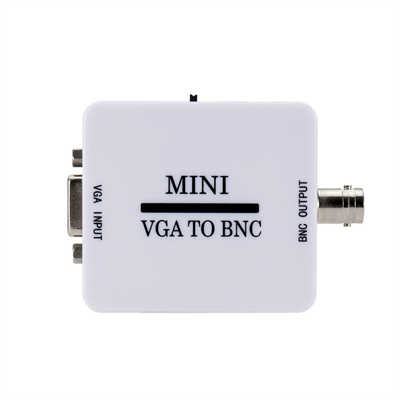
The VGA Adapter Compatibility Puzzle: Why Some Work, Some Don’t, and How to Choose the Right One
Introduction
You have probably been there before. You buy a VGA adapter online, plug it in with confidence, and nothing happens. No signal. No display. Just a blank screen staring back at you. Then you try a different adapter—maybe a friend’s or a more expensive model—and it works immediately. Same devices, same cables, different outcome.
This scenario plays out thousands of times every day. According to aggregated customer review data across major retailers, roughly 15 to 25 percent of VGA adapter purchases result in some form of compatibility issue, with resolution failures and signal detection problems accounting for the majority of complaints. But why does this happen? The answer is not simple, but it is technical, fascinating, and entirely predictable once you understand what is going on inside that little dongle.
This article breaks down the real reasons why some VGA adapters work and others do not—from the fundamental signal differences between analog and digital video to the quirks of EDID negotiation, chipset design, power delivery, and resolution support.
The Fundamental Problem: Analog vs. Digital
The first thing you need to understand is that VGA and HDMI speak completely different languages. VGA carries an analog video signal—continuous voltage variations that represent colour and sync information. HDMI, by contrast, is purely digital—a stream of ones and zeros transmitted over differential pairs.
This is not like adapting between HDMI and DVI, which are both digital and can be connected with a simple passive cable that merely rearranges pins. Converting VGA to HDMI (or vice versa) requires active signal conversion: an actual chip that samples the analog waveform, quantizes it into digital values, and packages it into HDMI-compliant data packets.
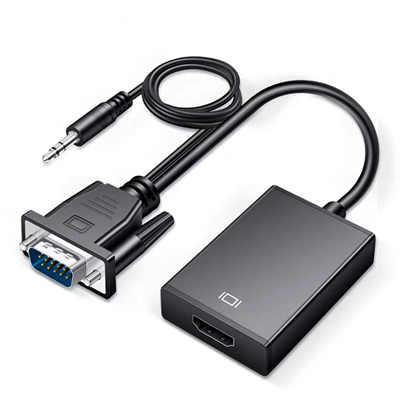
Active adapters contain a built-in conversion chip that does the heavy lifting. Passive adapters, by contrast, have no such chip and rely on the source device to perform the conversion—which is impossible for VGA-to-HDMI because VGA sources do not output digital signals. Every VGA-to-HDMI or HDMI-to-VGA adapter is therefore an active device. If you buy an adapter that claims to convert between these two formats and it does not contain a chip, it simply will not work.
This distinction alone explains a significant portion of failures. Many users purchase cheap adapters unaware that active conversion requires power, proper chipset design, and careful signal handling—all of which cost money to implement correctly.
The EDID Handshake: When the Adapter and Display Cannot Agree
Even when an adapter has the right conversion chip, it still needs to negotiate with the display. This negotiation happens through EDID—Extended Display Identification Data.
EDID is a small block of data stored on every modern display. It tells the source device what resolutions, refresh rates, and timings the monitor supports. When you connect a monitor directly via VGA, the graphics card reads the EDID over the VGA cable’s DDC (Display Data Channel) lines, learns the monitor’s capabilities, and outputs an appropriate signal.
The problem is that VGA was never designed with hot-plug detection in mind. HDMI and DVI have dedicated pins for detecting when a display is connected, but VGA does not. The only way a VGA adapter knows a display is present is by successfully reading its EDID over the DDC lines. If that read fails, the adapter—and by extension the source device—has no idea what resolution to output.
EDID failures happen for several reasons:
Long VGA cables. Cables longer than about 10 feet (3 metres) can degrade the signal on the DDC lines to the point where EDID cannot be read reliably. The adapter assumes no monitor is attached and shuts down.
Poorly implemented adapters. Some cheap VGA-to-HDMI converters do not properly pass EDID from the HDMI display back to the VGA source. The source sends a resolution, the adapter converts it, but the display cannot accept it because the adapter never told the source what the display actually supports.
Displays with incomplete or missing EDID. Some older televisions and projectors either do not report EDID at all or report it incorrectly over VGA. Without EDID, the graphics card makes a naive guess about what resolution to output—often defaulting to 640×480 on a display that expects 1920×1080.
One particularly instructive case involves USB 3.0 VGA adapters from DisplayLink. These adapters disable themselves if they cannot read EDID, effectively treating a missing EDID as proof that no monitor is connected. USB 2.0 versions of the same adapter, by contrast, will attempt a default mode even without EDID. The same cable, the same monitor, the same computer—but one adapter works and the other does not, purely because of how each handles EDID negotiation.
Resolution Limitations: The 640×480 Floor and Beyond
Perhaps the most common frustration with VGA adapters involves resolution support. Many adapters work perfectly at 1920×1080 but fail completely at lower resolutions—especially below 640×480.
This is not arbitrary. The HDMI specification defines a minimum pixel clock of 25 MHz, which corresponds to 640×480 at 60 Hz. Resolutions with pixel clocks below this threshold—such as 320×200 or 720×400—fall outside the official HDMI standard. Many cheap converter chips simply do not support these non-standard modes.
A user on the VOGONS forum documented exactly this problem while trying to connect a vintage 486 computer to a modern TV via a VGA-to-HDMI adapter. The POST screen appeared briefly, but as soon as the system switched to 320×200 mode for gaming, the TV displayed a “no input” message. The adapter worked at 640×480 but failed at anything below that—not because the adapter was broken, but because the HDMI receiver in the TV could not accept a signal with a pixel clock below the spec minimum.
Even at supported resolutions, refresh rates matter. Some adapters only handle 60 Hz signals and will fail with 70 Hz or 85 Hz modes, even if the resolution itself is nominally supported.
The resolution story gets more complicated with widescreen and non-standard formats. Many adapters list support for 1920×1080 but fail at 1360×768, 1440×900, or other common monitor resolutions. This usually comes down to the EDID handshake failing for those specific modes, or the adapter’s internal scaler lacking support for the necessary timings.
The Chipset Factor: Not All Converters Are Created Equal
The conversion chip at the heart of every VGA adapter is the single most important determinant of compatibility. Different chips have different capabilities, different quirks, and different sets of supported resolutions.
Each has different strengths and weaknesses. Some handle a wider range of resolutions. Some include better audio support. Some are more power-efficient. But none of them are perfect, and none of them support every possible VGA mode.
The chipset also determines whether the adapter is directional. A chip designed for VGA-to-HDMI conversion cannot typically be used in reverse. This is why adapters are almost always labelled as either “VGA to HDMI” or “HDMI to VGA”—they are not interchangeable. Plugging a VGA-to-HDMI adapter into an HDMI source expecting to get VGA output will simply not work.
The Power Problem: Where Does the Conversion Chip Get Its Energy?
Active signal conversion requires power. The chip inside a VGA adapter needs electricity to sample the analog signal, perform the digital conversion, and drive the HDMI output.
Some adapters draw this power from the HDMI port itself. The HDMI specification includes a 5V power line that can supply a small amount of current. However, not all HDMI ports provide enough power for reliable conversion. Laptops, in particular, sometimes have lower-power HDMI ports that cannot adequately drive an active adapter.
Other adapters include a separate USB cable for power. These adapters will not work at all unless the USB cable is connected to a powered port. Users frequently mistake this requirement for a defect, assuming the adapter is broken when it simply lacks power.
A small number of adapters attempt to draw power from the VGA side. VGA was never designed to carry power, but some adapters manage to extract enough current from the video signal itself to operate. This is unreliable at best and can lead to intermittent failures, ghost displays, or complete non-functionality depending on the source device.
There is also a darker side to power delivery. Some USB-C to VGA adapters have been known to cause failures in MacBook Pro USB-C power delivery circuitry due to improper PD (Power Delivery) negotiation. The adapter negotiates for power incorrectly, the laptop’s power system gets confused, and the result is a dead logic board. This is rare, but it underscores the importance of buying adapters from reputable manufacturers.
Directionality: One-Way Street
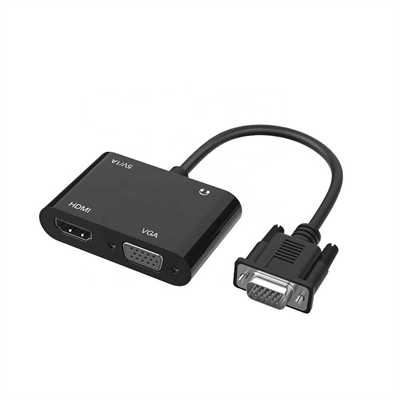
Every VGA adapter is directional. An HDMI-to-VGA adapter takes a digital HDMI signal and converts it to analog VGA. A VGA-to-HDMI adapter does the opposite—it takes an analog VGA signal and converts it to digital HDMI.
These are not the same thing. They contain different chips, handle different signal flows, and serve different purposes. If you have a laptop with an HDMI output and a monitor with a VGA input, you need an HDMI-to-VGA adapter. If you have a legacy computer with a VGA output and a modern HDMI display, you need a VGA-to-HDMI adapter.
Buying the wrong direction is one of the most common mistakes users make. The adapters look similar, the packaging is often confusing, and the listings on e-commerce sites are not always clear. But the direction matters absolutely—an adapter designed to go one way will not work in reverse.
Cable Quality and Physical Connections
Sometimes the problem is not the adapter at all. It is the cable.
HDMI cables vary widely in quality. Some do not carry the 5V power line properly, which means the adapter cannot draw enough power to operate. Others have poor shielding, leading to signal degradation and intermittent flickering. In office environments, electromagnetic interference from gas-lift office chairs has been known to cause video flickering on poorly shielded cables.
VGA cables have their own set of issues. Long VGA cables degrade the EDID signal, as mentioned earlier. Cheap VGA cables may omit the DDC lines entirely, making EDID reading impossible. Physical damage to connectors, bent pins, or poor manufacturing tolerances can prevent a proper electrical connection.
Even the adapter’s own connector can be the weak point. Some adapters have connectors that do not seat properly in the port, leading to intermittent connections that are maddeningly difficult to diagnose.
Driver and Operating System Factors
For USB-based VGA adapters—as opposed to simple dongle-style converters—driver compatibility adds another layer of complexity.
USB-to-VGA adapters typically require drivers to function. These drivers are often specific to the chipset manufacturer, and different brands use different chipsets with incompatible drivers. Installing the wrong driver—or failing to install one at all—results in a non-functional adapter.
Operating system matters too. An adapter that works flawlessly under Linux may fail under Windows, or vice versa. One user reported that a Vention VGA-to-HDMI adapter worked perfectly with Linux Mint but produced only a blank screen under Windows 10, despite both operating systems running on the same hardware. The adapter worked. The hardware worked. The difference was entirely in how each OS handled the EDID negotiation and driver stack.
Windows 7, Windows 10, and Windows 11 all handle VGA adapters differently. Some adapters explicitly state they are not compatible with older versions of Windows. MacOS support is similarly inconsistent, with some adapters working and others failing depending on the OS version and the specific chipset.
How to Choose a VGA Adapter That Will Actually Work
Given all these potential failure points, how do you choose an adapter that will work?
Know your direction. Determine whether you need VGA-to-HDMI or HDMI-to-VGA. This is non-negotiable.
Check the resolution requirements. If you are connecting a legacy system that outputs non-standard resolutions—especially below 640×480—look for an adapter that explicitly lists support for those modes. Many do not.
Consider the power source. If the adapter requires USB power, make sure you have a USB port available and that it provides enough current. If it draws power from HDMI, be aware that some laptop HDMI ports may not supply enough.
Read the chipset specifications when possible. Adapters using MacroSilicon chips are common and generally work well for standard 1080p signals, but they struggle with legacy resolutions. Higher-end adapters may use different chips with broader compatibility.
Buy from reputable manufacturers. Cheap no-name adapters from discount platforms are more likely to have poor EDID handling, incomplete resolution support, and questionable power management. The savings are rarely worth the frustration.
Test with different cables. If an adapter does not work, try a different HDMI or VGA cable before assuming the adapter is faulty. Cable quality matters more than most people realise.
Update firmware if possible. Some DisplayPort-to-VGA adapters have updateable firmware that can resolve compatibility issues with specific graphics cards. This is less common for VGA adapters, but it is worth checking.
Conclusion
The question of why some VGA adapters work and others do not has no single answer. It is a convergence of technical factors: the fundamental incompatibility between analog and digital signals, the fragility of EDID negotiation over VGA, the limitations of conversion chips, the demands of power delivery, the quirks of operating system drivers, and the variability of cable quality.
An adapter that works perfectly in one context—one computer, one monitor, one cable, one operating system—may fail entirely in another. This is not because the adapter is “bad” in any absolute sense. It is because VGA-to-HDMI conversion is a complex process that requires every link in the chain to function correctly.
Understanding these technical realities will not make every adapter work. But it will help you diagnose problems when they arise, choose the right adapter for your specific needs, and avoid the frustration of buying yet another dongle that does nothing but stare back at you with a blank screen.
Frequently Asked Questions
Why does my VGA adapter work on one computer but not another?
Different computers output different signal characteristics—voltage levels, sync timings, and EDID handling can all vary. Some graphics cards are more forgiving of non-standard signals than others. Operating system differences also play a role, particularly for USB-based adapters that require drivers.
Why does my adapter work at 1920×1080 but not at lower resolutions?
Many converter chips do not support pixel clocks below the HDMI minimum of 25 MHz, which corresponds to 640×480 at 60 Hz. Resolutions below this threshold fall outside the official specification and are often not implemented.
Do I need a powered adapter?
It depends. Some adapters draw enough power from the HDMI port. Others require external USB power. If your adapter has a USB cable, it must be connected for the adapter to function.
Can I use an HDMI-to-VGA adapter in reverse?
No. These adapters are directional. An HDMI-to-VGA adapter contains a chip that converts digital HDMI to analog VGA. It cannot convert analog VGA to digital HDMI.
Why does my screen flicker or go blank intermittently?
This can be caused by poor cable shielding, electromagnetic interference, or a loose connection. Try a different cable, preferably one with ferrite cores. Also check that the adapter is securely seated in both ports.
Why does my BIOS or POST screen not appear?
Many adapters do not support the low-resolution modes used during system startup—typically 720×400 or 640×480 at non-standard refresh rates. The adapter may only start working once the operating system loads and switches to a supported resolution.
Is there a way to force a specific resolution?
On some operating systems, you can manually create an EDID override or force a specific resolution through the graphics driver settings. This is advanced troubleshooting and not guaranteed to work with all adapters.
📖 Related Featured Articles

10 Ways to Use a VGA to HDMI Converter Bridging Analog-Digital Divide
Discover 10 practical ways to use a VGA to HDMI converter—from classrooms and conference rooms to di...

Bidirectional VGA Adapters: Separating Marketing Hype from Hardware Reality
Are bidirectional VGA adapters real or just marketing fiction? This deep-dive explains the technical...

Can I connect VGA to HDMI without a converter? - WinFitin
Can you connect VGA to HDMI without a converter? We examine signal types, voltage differences, data ...

Can I convert VGA to USB for a laptop? - WinFitin
Can VGA be converted to USB for a laptop? Yes, but only with an active USB graphics adapter. Learn r...