How to Choose the Right HDMI Adapter for Your Device
You just bought a new laptop, and you’re ready to give a presentation—but the projector uses that old VGA cable. Or maybe you’re trying to connect your tablet to a hotel TV, and suddenly realize there’s no HDMI port in sight. We’ve all been there.
The truth is, picking an HDMI adapter isn’t just about finding a cable that fits. It’s about understanding what your device can output, what your display expects, and a few small details that can save you from that last-minute scramble. Here’s a straightforward way to think about it.
1.0 Start with Your Device’s Port
Before you even look at adapters, take a close look at the side of your laptop, tablet, or phone. What shape is the port?
If you’re using a modern ultrabook, a MacBook, or even some Windows tablets, you’ll likely see USB-C ports. That’s where most of the confusion happens. Not every USB-C port supports video output, so if you’re on a Windows device, a quick check of the specs (look for “DisplayPort Alt Mode”) is worth your time. Apple users on MacBooks are usually safe—most models with USB-C support video out.
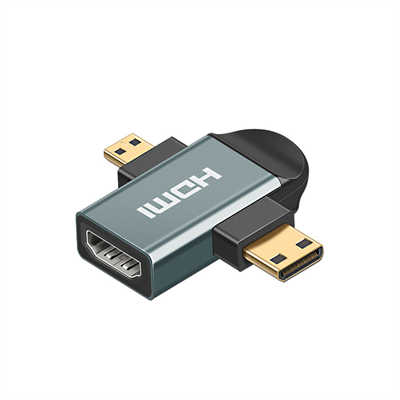
If your device is a few years older, you might still have a full-size HDMI port. In that case, you don’t actually need an adapter—just a standard HDMI cable. But if you’re dealing with a smaller device like a tablet, you could be looking at micro HDMI or mini HDMI. They’re less common now, but they still show up on certain cameras and portable monitors.
The golden rule: identify your device’s output port first. Everything else flows from that.
2.0 Understand What Your Display Needs
Now, think about the screen you’re connecting to. Is it a modern 4K TV, a 1080p office monitor, or an older classroom projector?
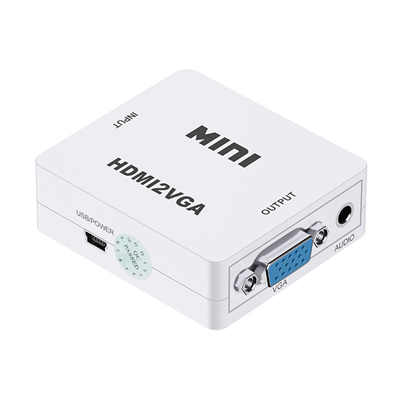
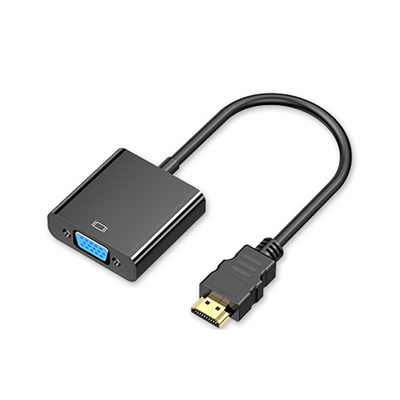
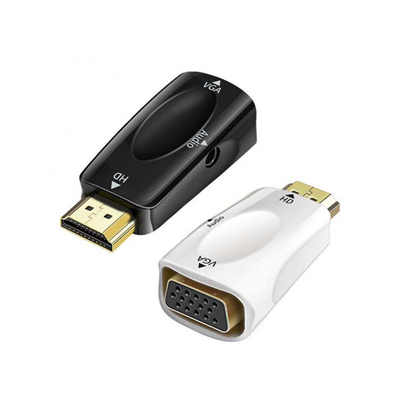
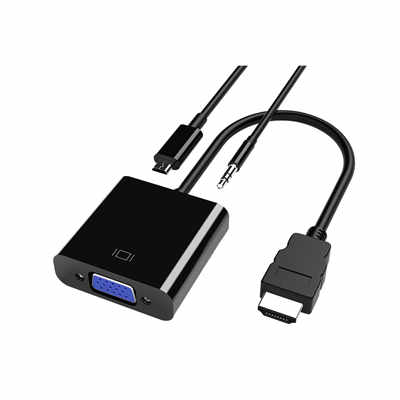
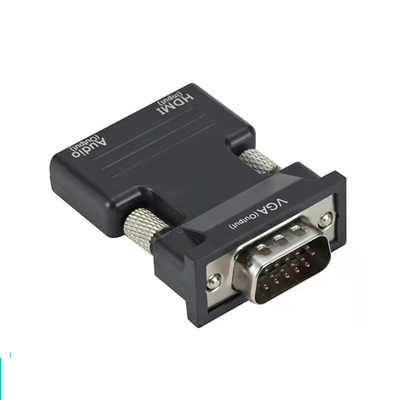
Most displays today use a standard HDMI port (Type A). That’s the wide, trapezoid-shaped one you’ve seen a thousand times. If your display is older, you might run into VGA or DVI. Those are analog or older digital connections, and they require specific adapters—often with extra chips inside to convert the signal.
Here’s a practical example: if you’re connecting a new USB-C laptop to an old projector that only has VGA, you’ll need an active adapter. A simple USB-C to HDMI cable won’t work because the display isn’t HDMI. You’ll need something like a USB-C to VGA adapter, which actively converts the signal. These cost a bit more, but they’re the only way to make it work reliably.
3.0 Pay Attention to Resolution and Refresh Rate
This is where people often get tripped up. They buy a cheap adapter, connect their 4K monitor, and wonder why the picture looks soft or the screen keeps flickering.
Not all HDMI adapters are created equal. A $10 adapter might only support 4K at 30Hz, which is fine for watching movies but feels laggy when you’re moving a mouse around. If you’re using a high-refresh-rate monitor (120Hz or above) or you do any kind of creative work, look for adapters that explicitly state HDMI 2.0 or 2.1 support, and check that they can handle 4K at 60Hz or higher.
For most office work and video streaming, 4K at 30Hz is acceptable. For gaming, design work, or anything involving fast motion, don’t skimp here. The difference is noticeable.
4.0 Consider Power Delivery (If You’re Using USB-C)
One detail that’s easy to overlook: if you’re using a USB-C adapter on a laptop, many of them include a passthrough charging port. This means you can plug your power cable into the adapter, and the adapter connects to your laptop, so you don’t lose your only charging port while presenting.
This is one of those small things that makes a big difference. If you’ve ever been in a meeting with your laptop battery slowly draining because the only USB-C port is taken up by the HDMI adapter, you’ll understand why it’s worth spending an extra few dollars on a hub or adapter with power delivery.
Just make sure the adapter supports enough wattage for your laptop. Most support 60W to 100W, which covers the majority of ultrabooks.
5.0 Don’t Overlook Cable Length and Build Quality
Adapters come in two main forms: short dongles that hang off your device, and cables with built-in heads.
The short dongles are convenient for travel, but they can put strain on your device’s port—especially if the adapter is stiff and you’re using it on a couch or bed. A braided cable or a flexible adapter with a short cable built in is often more forgiving on your ports over time.
Also, if you’re frequently connecting and disconnecting, look for adapters with reinforced connector housings. The cheap plastic ones tend to crack after a few months of regular use.
6.0 A Few Real-World Scenarios
To make this more concrete, here are three common situations and what I’d pick:
- You have a MacBook Air (USB-C) and want to connect to a 1080p office monitor: A simple USB-C to HDMI cable works fine. No need for a bulky hub. Just confirm the cable supports at least HDMI 1.4.
- You have a Windows laptop with USB-C and want to connect to a 4K TV while keeping the laptop charged: Go for a small USB-C hub with HDMI and a power delivery port. Look for one that explicitly says “4K at 60Hz” to avoid the 30Hz flicker.
- You have an iPad Pro and want to connect to a conference room projector with HDMI: A USB-C to HDMI adapter works, but check whether your iPad model supports external displays. Some iPads mirror the screen, while others (with iPadOS 16 or later) can extend it. The adapter itself isn’t the limitation here—the software is.
7.0 Final Thoughts
Choosing the right HDMI adapter isn’t complicated once you know what to look for. Start with your device’s port, check what the display needs, and pay attention to resolution support. If you’re using USB-C, consider whether you need passthrough charging. And if you’re connecting to older displays, be prepared to buy an active adapter rather than a simple cable.
The goal isn’t to buy the most expensive adapter—it’s to buy the one that matches your specific setup. Get that right, and you’ll stop thinking about cables altogether. And honestly, that’s the best outcome: you connect, it works, and you move on with whatever you were trying to do in the first place.
📖 Related Featured Articles

RCA vs. HDMI: Which has better quality for retro gaming?
RCA vs. HDMI for retro gaming: Can a cheap converter beat analog? We analyze signal latency, upscali...

Active vs. Passive HDMI Adapters: What’s the Difference? - WinFitin
Convert correctly. Learn why active HDMI adapters contain chipsets necessary for converting signals ...

DisplayPort to VGA vs HDMI to VGA: Which adapter is faster? - WinFitin
Both work well, but DisplayPort to VGA adapters often support higher refresh rates and resolutions d...

HDMI to SDI Converters Why Broadcast Professionals Use Them
Discover why broadcast pros rely on HDMI to SDI converters for stable, long-signal-run productions....