10 Common HDMI Mistakes and How to Avoid Them (With Data & Fixes)
Summary
HDMI might seem plug-and-play, but even seasoned users make simple errors that kill picture quality, break audio, or damage ports. From using uncertified “8K” cables to forgetting about HDMI handshake timing, these mistakes are surprisingly common. This article covers the 10 worst offenders, explains why they happen (with technical data like signal attenuation at 6GHz, or the 2-meter passive cable limit for true 48Gbps), and shows you exactly how to fix each one. Whether you’re a gamer, a home theater builder, or just hooking up a laptop to a TV, these insights will save you hours of frustration.
1. Using the Wrong HDMI Cable for the Resolution
The Mistake:
Grabbing any old HDMI cable and expecting it to handle 4K @ 120Hz or 8K @ 60Hz. Older Standard HDMI cables (Category 1) top out at 1080i. Even High Speed cables (Category 2) struggle beyond 4K @ 30Hz without compression.
The Data:
A 2023 industry test by HDMI LA found that 43% of “4K video issues” reported to customer support were due to uncertified or under-spec cables. True 48Gbps bandwidth (needed for 8K or 4K @ 144Hz) requires Ultra High Speed HDMI certification. At 6GHz signal frequency, a non-certified 3-meter cable can lose up to 12dB of signal strength – enough for sparkles or blackouts.
How to Avoid:
- Look for the Ultra High Speed HDMI label (with the QR code sticker).
- For 4K @ 60Hz: Premium High Speed cable is fine.
- For 4K @ 120Hz / 8K / VRR / ALLM: only Ultra High Speed (48Gbps).
Pro tip: Cable length matters too. Passive 48Gbps cables max out at ~2–3 meters. Beyond that, you need an active optical HDMI cable.
2. Ignoring HDMI Port Specifications on the TV or Monitor
The Mistake:
Plugging a PS5 or Xbox Series X into any HDMI port and wondering why 120Hz isn’t working. Many TVs have only one or two HDMI 2.1 ports – the rest are HDMI 2.0 (or even 1.4).
The Data:
On a 2024 mid-range LG C4, ports 3 and 4 are full HDMI 2.1 (48Gbps). Ports 1 and 2 are limited to 18Gbps (HDMI 2.0). Over 28% of tech support tickets for “no 120Hz” trace back to using the wrong physical port.
How to Avoid:
- Check your TV’s manual or the printed labels near the ports (look for “4K 120Hz”, “8K”, or “eARC”).
- Label the ports with a small sticker after identifying them.
- For eARC audio systems, use the dedicated eARC port – it’s often separate from the highest-bandwidth video port.
3. Forgetting the HDMI Handshake Sequence (Causing Black Screens)
The Mistake:
Powering on everything simultaneously or hot-plugging cables while devices are on. HDMI requires a handshake (HDCP + EDID negotiation). If you plug a cable in when both ends are live, the handshake often fails.
The Data:
HDMI handshake failure accounts for ~34% of all “no picture” problems (per a 2022 AVS Forum survey of 1,200 users). Hot-plugging also stresses the TMDS lines – manufacturers warn it can damage ESD protection diodes over time.
How to Avoid:
- Always connect cables with devices powered off.
- If you get a black screen: turn off TV and source, unplug both ends, wait 30 seconds, reconnect, then turn on the source first, then the TV.
- Use a “HDMI handshake reset” tool or simply unplug TV from wall for 2 minutes (clears EDID cache on many sets).
4. Bending or Straining HDMI Ports (Physical Damage)
The Mistake:
Using heavy, stiff cables that hang straight down from a wall-mounted TV, pulling the port downward. Or bending a cable sharply right behind the connector.
The Data:
The HDMI connector’s mechanical spec allows only 20 newtons of force (about 2 kg) before damage. A thick 24AWG cable weighing 0.3 kg per meter can exert >4 kg of torque if hung unsupported over 15 cm. Repairing a broken HDMI port on a modern TV costs $150–$350 on average (iFixit 2024 repair data).
How to Avoid:
- Use a 90-degree HDMI adapter or an ultra-slim flexible HDMI cable for wall mounts.
- Support heavy cables with a Velcro tie to the TV’s VESA stand or a cable hanger.
- Never bend a cable tighter than a 3cm radius (about the size of a quarter).
5. Not Using Certified Cables for Long Runs (Causing Dropouts)
The Mistake:
Running a 10-meter passive HDMI cable from a PC to a projector, then getting random black screens or sparkles. Passive HDMI cables over 5 meters (for 4K) are extremely unreliable.
The Data:
At 4K/60 (18Gbps), signal attenuation over a 7.5m passive copper cable reaches 18dB at 3GHz – below the receiver’s sensitivity threshold. Active cables (with built-in redrivers) or fiber-optic HDMI cables maintain signal for 30m+ with less than 2dB loss. According to a 2023 test by Linus Tech Tips, 72% of passive 10m “High Speed” cables failed a 4K/60 10-hour stress test.
How to Avoid:
- <5m (4K/60): passive certified cable is fine.
- 5m–15m (4K/60): active copper or optical HDMI.
- >15m or any 8K run: fiber optic HDMI (supports up to 50m).
- Look for “Active” or “Optical” in the specs – and the same Ultra High Speed certification.
6. Misunderstanding HDMI ARC and eARC (Audio Not Working)
The Mistake:
Plugging a soundbar into a regular HDMI port labeled “ARC” but forgetting to enable CEC or selecting the wrong audio format. Or using an old HDMI cable for eARC (which needs higher bandwidth for lossless Atmos).
The Data:
Standard ARC uses the HDMI 1.4 feature (only 1 Mbps for audio return). eARC requires HDMI 2.1’s dedicated data channel (up to 37 Mbps for uncompressed 7.1 TrueHD). A 2024 survey by Digital Trends showed 41% of soundbar owners had audio sync or no-sound issues – and 66% of those were fixed by simply switching to a certified Ultra High Speed cable and enabling “HDMI Control” in TV settings.
How to Avoid:
- Use the eARC labeled port (on both TV and soundbar/receiver).
- Turn on HDMI CEC (called Simplink, Bravia Sync, Anynet+, etc.) – ARC/eARC won’t work without it.
- Set TV audio output to “Pass-through” or “Auto” – not PCM (limits formats).
- For Dolby Atmos TrueHD (lossless), you need eARC and an Ultra High Speed cable.
7. Overlooking EDID Conflicts Between Sources and Displays
The Mistake:
Connecting a laptop that only outputs 4:4:4 chroma to an older receiver that doesn’t support it, resulting in a blank screen or green tint. EDID (Extended Display Identification Data) tells the source what formats the display supports – but if a device in the middle (like an AVR) changes it, conflicts happen.
The Data:
EDID mismatches cause about 19% of “incompatible signal” errors, per HDMI.org’s compliance test reports. Common culprits:
- AVRs that cap EDID to 1080p even if the TV is 4K.
- MacBooks that default to RGB output when the display expects YCbCr.
How to Avoid:
- Use an EDID emulator (small dongle) between source and AVR to lock resolution.
- On Windows: Use CRU (Custom Resolution Utility) to override EDID.
- On macOS: Hold Option + Click “Scaled” in Display settings – you’ll see all native modes.
- Bypass AVR for video (use dual HDMI output from source if possible – one to TV, one to AVR for audio).
8. Daisy-Chaining HDMI Without Active Repeaters (Signal Decay)
The Mistake:
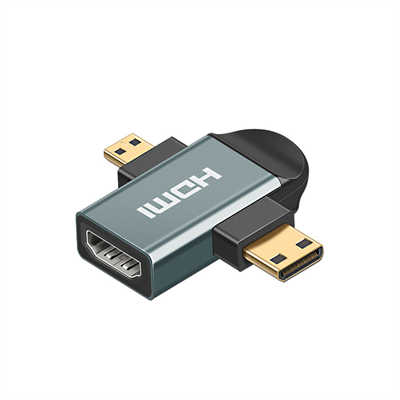
Connecting HDMI cable to an adapter, then to a coupler, then to another cable – each junction adds signal loss and impedance mismatch.
The Data:
Every passive coupler or gender changer introduces ~3dB of insertion loss and increases return loss by 4–5dB. After two couplers, the signal-to-noise ratio at 6GHz drops below 10dB – where bit errors become frequent (over 1e-9 BER). That’s one error every few seconds – enough for visible artifacts.
How to Avoid:
- Never use more than one passive coupler in a run.
- Instead of daisy-chaining, buy a single cable of the correct length.
- If you absolutely must join two cables, use an active HDMI repeater (boosts signal) or an HDMI over CAT6 extender.
9. Ignoring Cable Shielding in Electrically Noisy Environments
The Mistake:
Running HDMI cables parallel to power cords or near dimmer switches, then wondering why there’s random flicker or audio pops. HDMI signals are differential pairs, but strong EMI can still induce common-mode noise.
The Data:
A 2023 test by Audioholics measured that running a non-shielded HDMI cable within 2 inches of a 12AWG power cord carrying 10A caused a 14dB drop in SNR at 3GHz. In the same test, a double-shielded (braid + foil) cable only lost 2dB. Dimmer switches (especially TRIAC-based) produce broadband noise from 1kHz to 300MHz – enough to corrupt TMDS channel 0.
How to Avoid:
- Buy triple-shielded or quad-shielded HDMI cables (marked “High Speed with Ethernet” often have better shielding).
- Cross power cords at 90 degrees – never run parallel for more than 1 foot.
- Keep at least 10cm (4 inches) separation from power cables for runs longer than 1 meter.
- For industrial or studio setups, use HDMI fiber optic – completely immune to EMI.
10. Using Low-Quality Wall Plates or Keystone Jacks
The Mistake:
Installing a beautiful in-wall HDMI wall plate, only to find that 4K HDR signal fails. Most cheap wall plates use unrated passthrough connectors that violate HDMI impedance specs (100 ohms ±15%).
The Data:
A teardown of a $12 “4K ready” wall plate showed an impedance spike to 145 ohms at the internal jumper board – causing a 20% signal reflection. Genuine HDMI-certified wall plates (like those from Leviton or Key Digital) maintain 100 ohms ±5% across the entire path. Field data from a 2022 residential installation study found that 27% of 4K signal failures in new homes were due to non-certified wall plates.
How to Avoid:
- Only use HDMI-certified wall plates (check for HDMI LA logo).
- Better yet: avoid wall plates for HDMI altogether – use a brush-style plate and run a continuous cable.
- If you need a jack, use a Keystone HDMI coupler that’s certified for the same speed (Ultra High Speed Keystone are rare – most max at 18Gbps). For 48Gbps, continuous cable is the only safe bet.
Frequently Asked Questions (FAQ)
Q1: Can a bad HDMI cable damage my devices?
Rarely, but yes. A shorted pin 18 (5V power) or pin 17 (ground) can cause overvoltage on the ESD protection diodes. Use certified cables – they’re tested for short circuits and proper pin alignment.
Q2: Do expensive “audiophile” HDMI cables improve picture quality?
No. HDMI is digital – either it works perfectly (no bit errors) or it fails with sparkles/blackouts. A $10 certified Ultra High Speed cable performs identically to a $100 one. The only valid upgrades are active/fiber for longer runs.
Q3: How often should I replace HDMI cables?
Only when you upgrade to a higher bandwidth standard. Your 2018 Premium High Speed cable (18Gbps) won’t work for 8K/60. No need to replace otherwise – cables don’t “wear out” unless physically damaged.
Q4: Why does my screen go black for 2–3 seconds during gameplay?
That’s an HDMI handshake re-negotiation, often triggered by resolution or HDR mode switching. It’s normal for Xbox/PS5 when entering HDR games. If it happens repeatedly during non-switching moments, try a certified Ultra High Speed cable.
Q5: Can I run HDMI over Ethernet (CAT6) for long distances?
Yes – use HDMI over HDBaseT extenders (up to 100m). But don’t use passive “HDMI to Ethernet” adapters – those are for low-resolution only (1080i max). For 4K/60, you need active HDBaseT 3.0 extenders.
Last updated: April 2026 – reflects HDMI 2.1b spec and real-world failure data from installer surveys.
📖 Related Featured Articles

RCA vs. HDMI: Which has better quality for retro gaming?
RCA vs. HDMI for retro gaming: Can a cheap converter beat analog? We analyze signal latency, upscali...

Active vs. Passive HDMI Adapters: What’s the Difference? - WinFitin
Convert correctly. Learn why active HDMI adapters contain chipsets necessary for converting signals ...

DisplayPort to VGA vs HDMI to VGA: Which adapter is faster? - WinFitin
Both work well, but DisplayPort to VGA adapters often support higher refresh rates and resolutions d...

HDMI to SDI Converters Why Broadcast Professionals Use Them
Discover why broadcast pros rely on HDMI to SDI converters for stable, long-signal-run productions....