Can You Split HDMI to Two Monitors with Different Resolutions?
1.0 Introduction
The quest for a dual-monitor setup often hits a common roadblock: your laptop or desktop only has one HDMI port. When you look for a solution, an “HDMI splitter” seems like the obvious answer.
But a pressing question arises: Can you split HDMI to two monitors with different resolutions?
The short answer is yes, but not in the way you probably want.
While you can physically send a signal to two screens using a splitter, the ability for those screens to display different resolutions independently depends entirely on how you split the signal and what hardware you use.
Let’s break down how this works, the limitations of standard splitters, and the correct hardware you need to achieve a true multi-resolution setup.
2.0 The Problem with Standard HDMI Splitters
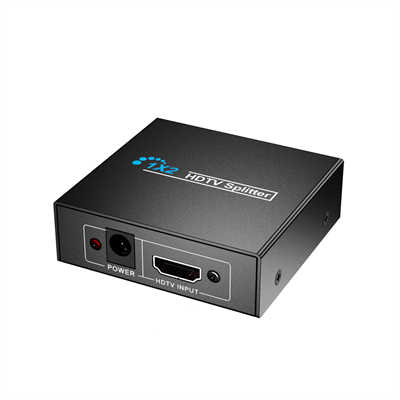
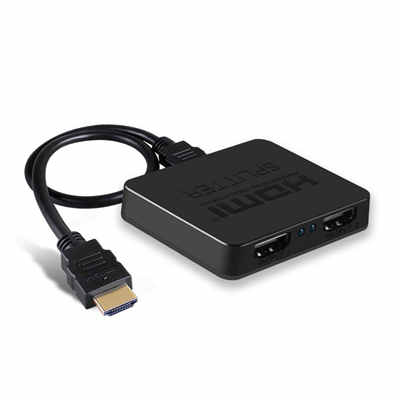
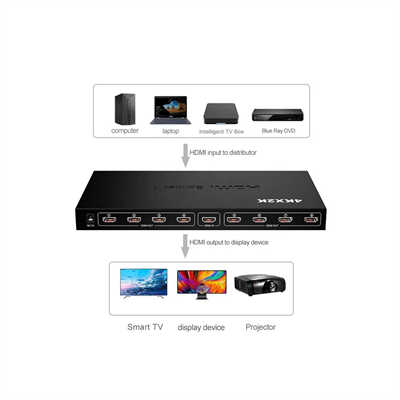
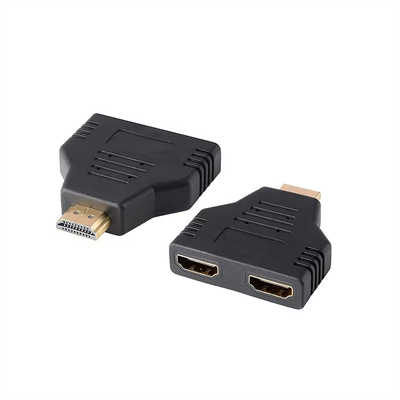
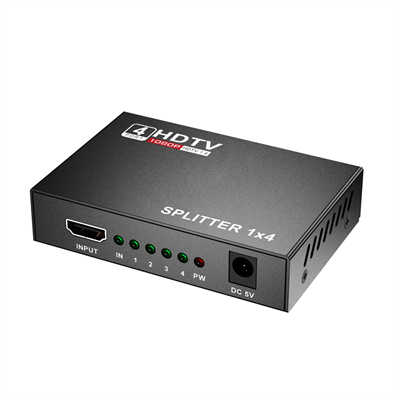
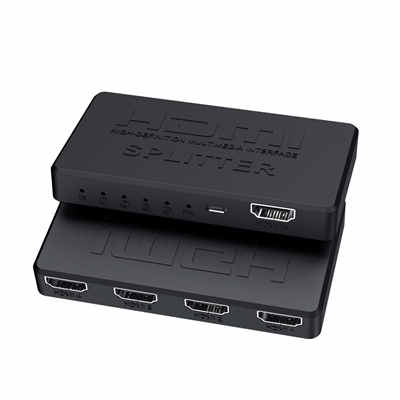
A standard HDMI Splitter (1×2) takes one signal from your computer and duplicates it exactly to two outputs.
- How it works: It acts like a photocopier. Whatever is sent from the GPU is mirrored exactly.
- The Resolution Result: If your primary monitor is 4K and your secondary monitor is 1080p, the splitter forces both monitors to run at the lowest common denominator (1080p) to maintain a stable signal.
- The Viewing Experience: You get “Mirrored” displays. Both screens show the same image. You cannot extend your desktop to have different windows on each screen.
Important: If you want to extend your desktop (e.g., have a web browser on one screen and a timeline on the other) with different resolutions, a standard passive splitter will not work.
3.0 Scenario 1: Using a Splitter (Mirrored Displays)
If you are setting up a digital signage display, a classroom projector, or a retail kiosk where both screens need to show the same image, a standard HDMI splitter is perfect.
| Item | Details |
|---|---|
| Hardware Needed | A simple 1×2 HDMI Splitter |
| Result | Identical resolutions on both screens (limited to the lower resolution of the two) |
4.0 Scenario 2: Using a Docking Station or USB Adapter (Extended Displays)
To achieve different resolutions (e.g., 1440p on your main monitor and 1080p on your secondary monitor) with an extended desktop, you cannot use a simple splitter. You need to bypass the limitation of the single HDMI port.
You have two primary methods to accomplish this:
4.1 Method A: USB-C or Thunderbolt Docking Station
If your computer supports video output via USB-C (DisplayPort Alt Mode) or Thunderbolt, a docking station is the best solution.
- How it works: The dock acts as an external graphics adapter. It uses the bandwidth of the USB-C port to generate multiple independent video signals.
- Setup: Connect your main monitor to the dock’s HDMI port and the second monitor to the dock’s DisplayPort (or a second HDMI port).
- Result: The computer sees two distinct displays. You can set one to 4K 60Hz and the other to 1080p 144Hz independently.
4.2 Method B: USB to HDMI Adapters
If your computer does not have a free USB-C port with video capability, you can use a USB 3.0 to HDMI Adapter.
- How it works: This device uses a technology called “DisplayLink” (or similar) to compress video data and send it through a standard USB-A port. It functions as an external graphics card.
- Setup: Use your native HDMI port for Monitor A. Plug the USB adapter into a USB 3.0 port for Monitor B.
- Result: You get true extended desktop functionality with independent resolutions.
5.0 Why Your Graphics Card Matters
Even with the right adapters, your Graphics Processing Unit (GPU) plays a crucial role in how resolutions are handled.
5.1 Integrated Graphics (iGPU)
Most modern Intel and AMD integrated graphics can handle two different resolutions easily via a docking station or the motherboard’s combined outputs (HDMI + DisplayPort). However, they may struggle if you try to run one monitor at 4K 144Hz and another at 4K 60Hz simultaneously due to bandwidth limits.
5.2 Dedicated Graphics (dGPU)
If you have a gaming PC or a high-end laptop with an NVIDIA or AMD card, these are designed to run multiple displays with varying resolutions, refresh rates, and even variable refresh rates (G-Sync/FreeSync) without issue.
6.0 Important Considerations
Before purchasing hardware, keep these factors in mind:
6.1 HDCP Compliance
If you are streaming content from Netflix, Hulu, or Disney+, the signal requires HDCP (High-bandwidth Digital Content Protection). Some cheap USB-to-HDMI adapters do not support HDCP 2.2, meaning streaming services may show a black screen on the second monitor. Always check the specifications if you plan to stream content.
6.2 Refresh Rate
If you are a gamer, be cautious. Standard HDMI splitters usually cap refresh rates at 60Hz. If you have a 144Hz or 240Hz monitor, a splitter will likely cap it to 60Hz. To maintain high refresh rates on multiple monitors, you should use a docking station or connect directly via DisplayPort when possible.
6.3 Cable Length
HDMI signals degrade over distance. If your monitors are far apart, a splitter might cause signal dropouts. For distances over 25 feet, consider an HDMI over Ethernet Extender in addition to your splitter.
7.0 Summary: Which Setup Do You Need?
| Goal | Hardware Needed | Different Resolutions? | Extended Desktop? |
|---|---|---|---|
| Mirroring (Same image, both screens) | Standard 1×2 HDMI Splitter | ❌ No (Forced to match) | ❌ No |
| Extending (Different images, different resolutions) | USB-C Dock / USB 3.0 to HDMI Adapter | ✅ Yes | ✅ Yes |
| Gaming (High refresh rates, different resolutions) | DisplayPort Daisy-Chaining or High-End Thunderbolt Dock | ✅ Yes (if GPU supports) | ✅ Yes |
8.0 Conclusion
So, can you split HDMI to two monitors with different resolutions?
- If you use a standard passive splitter, the answer is no. You will be stuck with mirrored displays and a single resolution that matches the lowest capability of the two monitors.
- If you use the correct hardware—specifically a USB-C docking station or a USB 3.0 video adapter—you absolutely can run two monitors with different resolutions, refresh rates, and an extended desktop.
Pro Tip: Before buying a splitter or dock, check your computer’s specifications. If your computer has a Thunderbolt 3 or 4 port, investing in a Thunderbolt dock is the most future-proof way to achieve a flexible, high-resolution multi-monitor setup.
9.0 Frequently Asked Questions (FAQ)
Can I use an HDMI splitter for one 4K monitor and one 1080p monitor?
Yes, but both monitors will display at 1080p. The splitter cannot send 4K to one and 1080p to the other simultaneously.
9.1 Will a splitter affect gaming performance?
If you are mirroring, yes, because the GPU has to render the game twice at the lower resolution. If you use a docking station for extended displays, the performance hit is minimal unless you are gaming across both screens simultaneously.
9.2 What is the difference between a splitter and a switch?
A Splitter sends one signal to multiple screens. A Switch allows you to connect multiple computers (e.g., a laptop and a desktop) to one monitor. They are not interchangeable for this purpose.
10.0Share Your Setup!
Have you successfully set up dual monitors with different resolutions? Share your experience in the comments below! If you need help choosing the right docking station for your specific laptop model, feel free to ask.
📖 Related Featured Articles

Top 5 Benefits of Using an HDMI Splitter for Digital Signage - WinFitin
Streamline your business advertising. Discover how HDMI splitters simplify managing multiple screens...

Do HDMI Splitters Reduce Quality? Debunking the Myth - WinFitin
Worried about losing resolution? We debunk the myth of quality loss and explain why digital signals ...

Using an HDMI Splitter to Connect TV and Projector Simultaneously
Create the ultimate indoor/outdoor viewing setup. Learn how to use an HDMI splitter to run both a TV...

HDMI Splitters for Dual Monitors: Extended Display Solutions
Struggling to extend your desktop across two monitors? Discover why HDMI splitters won't work for ex...