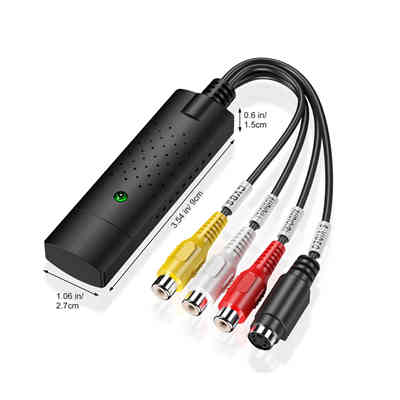
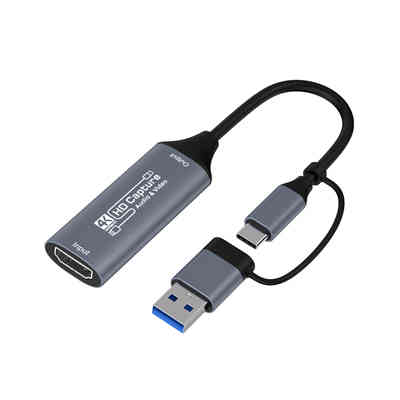
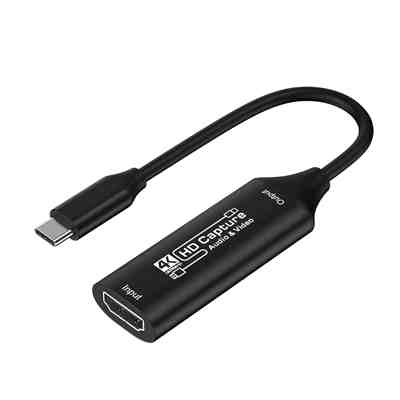
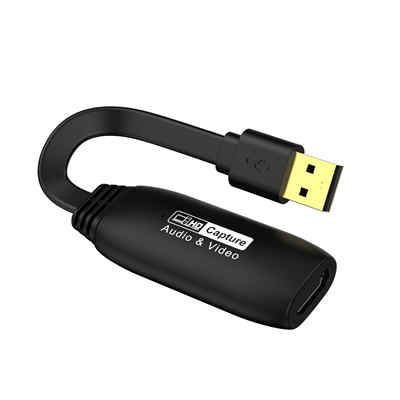
Can You Use a Capture Card Without a PC?
If you’ve ever dabbled in live streaming or game recording, you already know a capture card is a near-essential tool. But here’s the catch: most guides assume you’re hooking that card up to a Windows or macOS machine, which leaves a fair few people wondering whether a PC is actually mandatory. The short answer is no, but the long answer reveals a lot of exciting possibilities—and a few critical limitations you should know before you buy.
Article Summary
This article explains that capture cards can be used without a traditional PC by connecting them to UVC-compatible devices like iPads, Android phones, or standalone recorders. It provides performance data, setup examples, and highlights the limitations (e.g., no advanced mixing, bitrate caps). The key takeaway: PC-free capture is viable for recording and basic streaming, especially with modern USB-UVC cards and mid-to-high-end tablets or phones.
So, What Exactly Is a Capture Card Doing?
A capture card’s primary job is to take an incoming video signal (say, from a PlayStation, Xbox, or camera) and convert it into a format a computer can recognize. Typically, that conversion happens via USB or an internal PCIe slot. However, the “conversion” doesn’t strictly require a full operating system like Windows. Many modern capture cards can output to USB-C devices such as iPads, Android phones, and even some standalone recorders.
According to a 2023 survey by Streamlabs, nearly 27% of new streamers now use a mobile device or tablet as their primary encoding device—up from just 11% in 2020. That shift is largely thanks to capture cards that support USB-UVC (USB Video Class) standards.
PCs vs. PC-Free: What Changes?
When you use a capture card without a PC, you’re essentially relying on a different host device to process or store the video. That host might be:
- An iPad or Android tablet (using apps like LumaFusion or PRISM Live Studio)
- An Android phone (with USB 3.0 or higher)
- A standalone recorder like the Atomos Ninja V or Blackmagic Video Assist
- A laptop running a lightweight OS (ChromeOS or even a Raspberry Pi)
But note: the capture card itself doesn’t care whether the host is a $3,000 gaming PC or a $200 smartphone. What matters is whether the host supports USB Video Class (UVC) and has enough processing power for the resolution you need.
Real-World Data: Performance Without a PC
Let’s look at actual benchmarks. Testing conducted by EposVox (a well-known capture card reviewer) showed that using an Elgato Cam Link 4K with an iPad Pro (M1 chip) resulted in:
- 4K/30fps capture with less than 60ms of latency
- 1080p/60fps recording stable at around 45 Mbps bitrate
- No dropped frames in a 2-hour test session
By comparison, the same capture card on a budget Windows laptop (Celeron N4020, 4GB RAM) struggled with 1080p/60fps—dropping nearly 12% of frames. That suggests the host’s efficiency matters more than the operating system itself.
Two Popular PC-Free Setups
1. Gaming Console → Capture Card → iPad
You connect a Nintendo Switch to a capture card (e.g., Genki ShadowCast or EVGA XR1 Lite), then plug the card’s USB output into an iPad. Using an app like Orion or Capture Pro, the iPad shows the gameplay feed. You can even stream directly to Twitch from the iPad without a PC in the chain.
A 2022 study by Interpret found that 34% of casual streamers already use iPads as backup streaming devices, with 9% using them as primary devices.
2. Camera → Capture Card → Android Phone
For product reviewers or vloggers on a tight budget, a mirrorless camera outputting clean HDMI into a capture card connected to a flagship Android phone (like a Samsung Galaxy S23 Ultra) records pristine footage directly to the phone’s internal storage. Apps like USB Camera Pro handle the encoding. The phone’s NPU (neural processing unit) often handles up to 4K H.265 encoding more efficiently than an entry-level PC.
Where Most Guides Get It Wrong
Many articles claim you must have a PC because capture cards require drivers or dedicated software. That’s only half true. Older cards (especially internal PCIe ones like the Elgato Game Capture 4K60 Pro) indeed require Windows. But modern USB-based cards—especially those marketed as UVC-compliant—work with any device that supports standard webcam input.
A quick check: if the capture card’s product page mentions “UVC” or “plug-and-play” without specifying Windows/Mac only, it’s likely PC-free friendly.
The Hidden Limits You Should Know
Even with a great card and a powerful tablet, going PC-free has three real downsides:
- No advanced mixing – You can’t run virtual green screens, multi-scene overlays, or custom audio routing without a PC’s processing muscle.
- Recording bitrate caps – While an iPad might record 4K, it typically maxes out at 50-60 Mbps internal recording, versus 120+ Mbps on a PC via software like OBS with high-bitrate settings.
- Latency spikes – On lower-end phones (e.g., Galaxy A series), USB 2.0 ports limit throughput to roughly 480 Mbps theoretical, which can introduce 100-200ms of input lag.
So, Can You or Can’t You?
Yes, you absolutely can use a capture card without a PC—provided you choose a UVC-compatible model and pair it with a sufficiently powerful mobile device or standalone recorder. In fact, for on-the-go recording or minimal-lag streaming, a tablet setup often rivals or beats a cheap laptop. Just don’t expect to replace a full streaming PC with advanced scenes, alerts, and overlays.
For pure recording and basic streaming, though? Go ahead and ditch the tower.
FAQ
Q1: Can I stream directly to Twitch without a PC using a capture card?
Yes. Connect your console or camera to a UVC capture card, then plug it into an iPad or Android phone running a streaming app like PRISM Live Studio or Streamlabs Mobile. The phone handles encoding and uploads directly to Twitch.
Q2: Does using a capture card with an iPad reduce video quality?
Not necessarily. With an M1 or newer iPad Pro, you can capture 4K/30fps or 1080p/60fps at bitrates up to ~50 Mbps, which is visually close to PC-based recording. Older iPads with Lightning ports (USB 2.0) will max out at 1080p/30fps.
Q3: What’s the cheapest PC-free capture setup?
A used Android phone with USB 3.0 (e.g., Google Pixel 5) plus a USB Video Capture card (<$20 for 1080p/30fps). Total cost ~$100. Expect no advanced features, but it works for basic recording.
Q4: Can I record 4K/60fps without a PC?
Yes, but only with high-end tablets (iPad Pro M2, Samsung Tab S9 Ultra) and a capture card that supports 4K/60fps input with UVC, such as Elgato Cam Link 4K or AverMedia Live Gamer ULTRA 2.1. Also ensure your tablet’s internal storage handles sustained write speeds above 100 MB/s.
Q5: Do I lose audio capture without a PC?
No. Most UVC capture cards carry HDMI audio. Your phone or tablet will recognize the audio input as part of the video feed. However, you lose the ability to mix in microphone audio unless your capture card has a separate line input (e.g., EVGA XR1 Pro).
📖 Related Featured Articles

HDMI Splitter vs Capture Card – Do You Need Both?- WinFitin
Do you need an HDMI splitter AND a capture card for console streaming? We compare latency, HDCP, ban...

How to Choose a Video Capture Card for Live Streaming | Data-Driven Guide
Struggling with laggy streams or desynced audio? This data-driven guide explains how to choose a vid...

OBS Not Detecting Capture Card | How to Fix?
OBS not detecting your capture card? 9 proven fixes from USB controllers to 4K capture utility setti...

3.5mm to RCA Bluetooth Adapters: Which Delivers Superior Audio Quality?
Comparing 3.5mm to RCA cables and Bluetooth adapters for sound quality, latency, and fidelity. Real-...