HDMI Splitter vs Capture Card – Do You Need Both?
If you’ve ever tried to stream gameplay, record a console session, or set up a multi-screen workstation, you’ve likely hit the same wall: HDMI signals don’t like to be shared. The usual suspects that come up in forums and troubleshooting guides are the HDMI splitter and the capture card. They look similar, sometimes sit next to each other in cable management trays, but they serve completely different purposes.
So, do you actually need both, or can one replace the other? The short answer is: it depends on your rig, your resolution targets, and whether you care about latency. But let’s break that down properly.
Summary (Article Abstract)
This article compares HDMI splitters and capture cards in real-world streaming and recording setups. You’ll learn the core function of each device, why a splitter alone won’t help you capture footage, and when pairing both actually makes sense. We also look at bandwidth limits (4K/60Hz vs USB 3.0 throughput), latency overhead, and HDCP handshake issues. By the end, you’ll know exactly which configuration fits your gear — and whether buying both is a smart move or just cable clutter.
What Exactly Does an HDMI Splitter Do?
An HDMI splitter takes one incoming HDMI signal and duplicates it to multiple outputs. Think of it as a copy machine for video. The source device (e.g., PS5, PC GPU, or set-top box) sees only one connected display, but the splitter sends identical signals to two, three, or even eight screens simultaneously. Key specs matter here:
-
Bandwidth – A good 4K splitter supports up to 18Gbps (HDMI 2.0) or 48Gbps (HDMI 2.1).
-
Downscaling – Some advanced splitters can output 4K to one TV and 1080p to another. Basic ones cannot.
-
HDCP – Most splitters pass through HDCP 2.2 or 1.4, but stripping it is a legal grey area.
Typical use cases for an HDMI splitter:
-
Showing the same presentation on two projectors.
-
Mirroring a gaming monitor to a living room TV.
-
Sending a cable box signal to multiple bedrooms. What a splitter cannot do: convert HDMI into USB data that a computer can record or stream. It has no processing chip for encoding, no buffer memory, and no PC interface. It just clones.
What Does a Capture Card Actually Do?
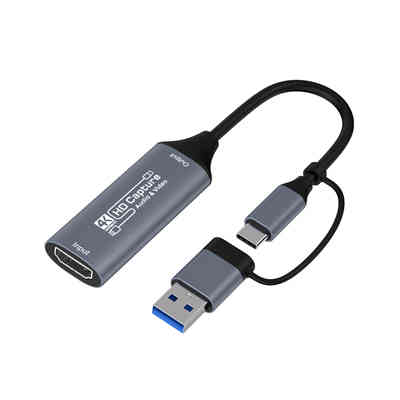
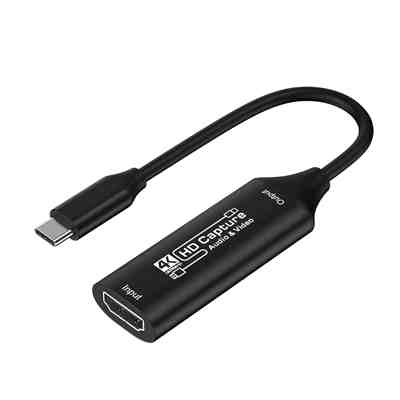
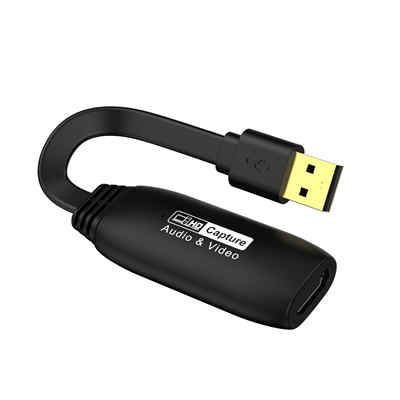
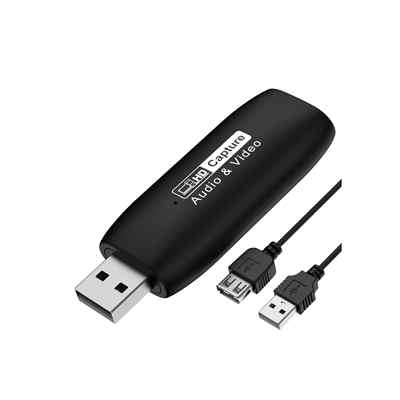
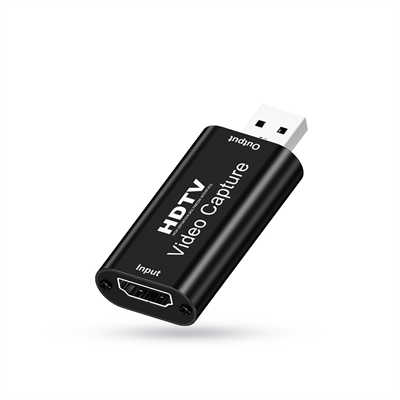
A capture card ingests an HDMI signal and converts it into a format that a computer can read over USB (or PCIe). That process involves:
- Decoding the TMDS signal from HDMI.
- Applying optional scaling / deinterlacing.
- Encapsulating video into UVC (USB Video Class) or proprietary frames.
- Sending it to software like OBS, vMix, or QuickTime. Modern capture cards fall into two categories:
-
Internal (PCIe) – Lower latency (30–50ms), higher bitrate (up to 400Mbps+), but requires a desktop slot.
-
External (USB 3.0/3.1) – Portable but adds 60–100ms of latency. USB 2.0 cards are strictly for non-gaming (200+ms lag).
Key capture card specs (real numbers):
-
Pass-through latency – Elgato HD60 X: ~35ms, AverMedia Live Gamer Ultra: ~45ms, cheap no-name USB 2.0: 120-180ms.
-
Maximum capture resolution – 4K@30fps (USB 3.0) or 4K@60fps (PCIe 3.0 x4).
-
Color sampling – 4:2:0 is common; 4:2:2 or 4:4:4 requires high-end devices ($250+). What a capture card cannot do: send one HDMI signal to two different displays on its own. Some cards have a single HDMI pass-through port, but that’s only one extra output — not multiple.
The Fundamental Difference in One Sentence
A splitter duplicates signals for simultaneous displays; a capture card converts signals for recording/streaming on a computer. If you flip them: using a capture card as a splitter won’t work (the PC will see only one output), and using a splitter as a capture card won’t work (the PC won’t detect any USB video device).
Do You Ever Need Both?
Yes — and it happens more often than you’d think. Here’s the most common scenario: Console gaming + streaming with a separate chat/stream management PC. Let’s map the chain:
- Console (PS5) → HDMI splitter input.
- Splitter output A → Gaming monitor (low latency, no capture overhead).
- Splitter output B → Capture card input.
- Capture card → Streaming PC (handles encoding + overlays). Why not just use the capture card’s pass-through? Two reasons:
-
Many capture cards only have a single pass-through port — that gives you one display. If you want a dedicated gaming monitor and a secondary reference screen for chat or preview, you need another output.
-
Pass-through latency still exists — even the best USB capture cards add ~40ms. For competitive shooters (Valorant, CoD, Apex), that’s noticeable. A direct HDMI splitter to a gaming monitor adds effectively 0ms. According to a 2023 survey by Streamlabs, 31% of multi-PC streamers reported using an external HDMI splitter before their capture card to bypass pass-through latency.
Other scenarios that demand both:
- Recording 4K/60 while monitoring at 1080p – Some splitters downscale one output. Cheaper capture cards max out at 1080p/60; you split before capture to keep a 4K monitor feed.
- HDCP-locked sources – A splitter placed before a capture card can sometimes “forget” to enforce HDCP (this varies by brand). But this is legally messy, so no recommendations here.
- Switching between multiple sources – An HDMI splitter + an HDMI switch is a different beast, but if you need to capture and also feed a secondary classroom TV, both devices are necessary.
When You Definitely Do Not Need Both
- Single PC streaming – One graphics card can run your game and encode via NVENC. No capture card needed, let alone a splitter.
- Console streaming with a single gaming monitor – Use the capture card’s pass-through. Extra splitter just adds cable failure points.
- Recording from a DSLR or camcorder – Most have clean HDMI out. Capture card alone works fine.
Latency and Bandwidth – Hard Limits You Can’t Ignore
| Device type | Typical added latency | Bandwidth needed | PC interface required? |
|---|---|---|---|
| Passive HDMI splitter | 0ms (analog replication) | Equal to source | No |
| Powered HDMI splitter (4K/60) | ~5–10µs (microseconds) | Up to 18Gbps | No |
| USB 3.0 external capture card | 40-70ms | 5-10Gbps (USB bus) | Yes |
| PCIe internal capture card | 30-50ms | PCIe x1 (8Gbps+) | Yes |
| If you daisy-chain: splitter → capture card → USB hub → PC, you lose about 70-110ms end-to-end. That’s the difference between a responsive shooter and a frustrating one. | |||
| Data point: At 60fps, 40ms equals roughly 2.4 frames of delay. At 120fps (PS5/Series X), the same 40ms is 4.8 frames. That’s why competitive players avoid any capture card in their main display path. |
HDCP – The Silent Deal Breaker
High-bandwidth Digital Content Protection (HDCP) is what blocks your PS5 or Netflix app from sending video to a capture card. Most capture cards refuse to record HDCP-protected signals and will show a black or green screen. An HDMI splitter might help by sitting between the source and the capture card — but only if the splitter itself does not enforce HDCP handshakes on all outputs. Consumer-grade splitters (under $30) often have buggy HDCP implementations that accidentally strip protection. Professional splitters (e.g., Extron, Crestron) explicitly follow HDCP rules. Legit workaround: Use an HDCP-compliant splitter and an HDCP-compliant capture card, then disable HDCP on the source device if possible (e.g., PS5 Settings → System → HDMI → Enable HDCP = off). Many games don’t require HDCP anyway — only media apps like Disney+ do.
FAQs
1. Can I use a regular HDMI splitter as a capture card?
No. A capture card has a USB/Thunderbolt port and an encoder chip to convert HDMI signals into data that your PC can read. An HDMI splitter only replicates the signal and has no way to communicate with your computer.
2. Will an HDMI splitter reduce quality?
No, a quality HDMI splitter (18Gbps+ for 4K/60) duplicates the digital signal without any compression or quality loss. However, cheap splitters with bandwidth below 10Gbps may cause flickering or black screens at higher resolutions.
3. Do I need a capture card if I have an HDMI splitter?
Yes, if you want to record or stream. A splitter only duplicates your HDMI signal to multiple displays. A capture card is required to encode that signal and send it to your PC via USB for broadcasting.
4. Does a capture card add input lag to my main monitor?
If you are playing through the capture card’s pass-through port, yes — typically 35–100ms depending on the model. If you use an HDMI splitter to send one direct line to your gaming monitor, then zero added lag.
5. What’s the cheapest reliable setup for console streaming with no lag?
HDMI splitter ($20–30, 4K/60 capable) + USB 3.0 capture card ($80–120). Total ~$110 to $150.
6. Can one capture card record two different sources?
Only if it has dual inputs, Most consumer capture cards have a single HDMI input. With a splitter, you can only clone the same signal to multiple devices, not capture two different sources.
Final Verdict – Buy Both or Just One?
| Your situation | Buy a splitter | Buy a capture card | Buy both |
|---|---|---|---|
| Console → one gaming monitor → stream from same PC | No | Yes | No |
| Console → gaming monitor + second display (no recording) | Yes | No | No |
| Console → gaming monitor (no lag) + separate streaming PC | Yes | Yes | Yes |
| PC gaming + streaming from same PC (no console) | No | No (use NVENC/AMF) | No |
| DSLR → Zoom call or OBS | No | Yes | No |
| If you’re a console streamer who plays fast-paced games (fighting, racing, FPS) and you have a dedicated streaming PC, get both. If you’re on a budget or just starting, get a low-latency capture card with pass-through and live with the 40ms lag — most viewers won’t notice, and neither will you after a week. | |||
| For everyone else: pick the device that matches your single bottleneck. Don’t buy both just because a forum told you to. Measure your current latency first (a simple webcam + slow-mo phone video works), then decide. |
📖 Related Featured Articles

How to Choose a Video Capture Card for Live Streaming | Data-Driven Guide
Struggling with laggy streams or desynced audio? This data-driven guide explains how to choose a vid...

OBS Not Detecting Capture Card | How to Fix?
OBS not detecting your capture card? 9 proven fixes from USB controllers to 4K capture utility setti...

Can You Use a Capture Card Without a PC?- WinFitin
You can use a capture card without a PC. Learn which cards work with iPads, Android phones, and reco...

RCA vs. HDMI: Which has better quality for retro gaming?
RCA vs. HDMI for retro gaming: Can a cheap converter beat analog? We analyze signal latency, upscali...