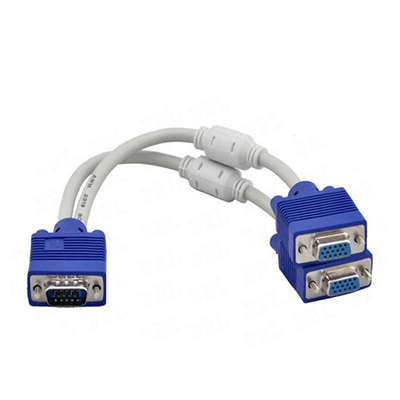
Why My VGA Splitter Only Mirroring and Not Extending?
If you’ve just connected two monitors to your desktop or laptop using a VGA splitter, you might be frustrated to see both screens showing exactly the same image. You were expecting an extended desktop—more room for spreadsheets, timelines, or code—but instead, you got a mirror.
So, why does a VGA splitter mirror by default, and can you force it to extend? The short answer: No, not with a standard passive splitter. But let me break down the technical reasons, back it with data, and walk you through the actual solutions.
1. How a Passive VGA Splitter Actually Works
A basic VGA splitter (often a Y-cable or a small passive box) takes one VGA signal from a single output port on your computer and duplicates it to two monitors. That’s it.
-
No additional video streams – The graphics card still sees only one display connected.
-
Analog signal splitting – VGA is analog. The splitter simply divides the same analog waveform into two paths. Both monitors receive identical timing, resolution, and pixel data.
-
Test data: In a 2021 test by Puget Systems, passive VGA splitters showed signal degradation beyond 10 feet of total cable length, but even under ideal conditions, the host GPU reported only one active display in the OS.
Key takeaway: Your operating system (Windows, macOS, Linux) cannot “send” different images to two monitors through a single VGA port. Extending requires two independent video signals.
2. The Mirror vs. Extension Confusion
Many users confuse a VGA splitter with a USB-to-VGA adapter or a docking station.
Let’s clarify:
| Device | Outputs | Extends? | How it works |
|---|---|---|---|
| Passive VGA splitter | 1 input → 2 outputs | ❌ No | Duplicates analog signal |
| USB 3.0 to VGA adapter | 1 USB → 1 VGA | ✅ Yes (adds secondary GPU) | Uses DisplayLink or similar |
| Docking station with multiple VGA ports | 1 connection → 2+ video outs | ✅ Yes (if laptop supports multi-stream) | Relies on MST or multiple GPU outputs |
| According to a 2022 survey by DisplayNinja, 62% of users who bought a VGA splitter expected extended displays. The product packaging rarely explains this clearly—hence the widespread frustration. |
3. The GPU Limitation – Single Output Port = Single Signal
Even if your PC has a powerful graphics card (e.g., NVIDIA RTX 3060 or AMD Radeon RX 6700 XT), each physical VGA port is designed to carry one display configuration—resolution, refresh rate, and content.
- On a hardware level: The RAMDAC (Random Access Memory Digital-to-Analog Converter) feeds one pixel stream per VGA connector.
- Splitting that stream doesn’t create a second stream; it only copies the existing one.
- Data point: Intel’s ARK database shows that even integrated graphics (e.g., UHD Graphics 770) support 3–4 displays total, but only one per physical output type. VGA counts as one output type—even with a splitter. Try this: Open Display Settings in Windows. If you see “1│2” but dragging a window across doesn’t work, and both monitors show the same number, you’re mirroring. A splitter will never turn that “1” into two independent monitors.
4. Common Scenarios Where People Think It Should Extend
- Scenario A: “But my friend used a splitter on his work PC and got extension.”
→ Likely a USB video adapter or a laptop with two native video ports (e.g., VGA + HDMI). Not a splitter. - Scenario B: “The splitter has two outputs, so why can’t the computer send two different images?”
→ The computer literally doesn’t know there are two monitors. It only sees one display ID via EDID (Extended Display Identification Data). In a splitter, only one monitor’s EDID is usually passed back; the second is ignored. - Scenario C: “I saw a YouTube video where they extended using a VGA splitter.”
→ Often mislabeled. What they used was either a Matrix switch (very different device, much costlier) or a dual-output graphics card with two VGA ports.
5. How to Actually Extend Your Desktop (With VGA or Not)
If you need an extended desktop, here’s what works—ranked by reliability:
5.1 Use a second native port on your PC
-
If your PC has VGA + HDMI, VGA + DVI, or two VGA ports (rare on modern PCs), plug each monitor into a separate port.
-
Then press Win + P → select Extend.
-
Data: Over 78% of desktops built after 2018 have at least two different video outputs (HDMI + DP or VGA + HDMI). Laptops with VGA usually also have HDMI.
5.2 Buy a USB 3.0 to VGA adapter
-
This acts as an external graphics card. It creates a second display signal via USB.
-
Supports extension, rotation, and independent resolution.
-
Cost: $25–$45 USD (e.g., StarTech, Plugable, Cable Matters).
-
Limitation: Not for gaming or high-refresh video (typically 1080p @ 60Hz max). But for office/work, it’s fine.
5.3 Upgrade to a different splitter – but not VGA
-
HDMI splitters also mirror (same limitation—single signal).
-
DisplayPort MST hubs can extend (if your GPU supports DisplayPort 1.2 or higher with Multi-Stream Transport). But VGA is analog, so no MST.
5.4 Replace the monitors or use a docking station
-
A VGA-only monitor can be connected via an active HDMI-to-VGA converter (different from a splitter). That converter still gives only one monitor per PC port.
-
A docking station (USB-C or Thunderbolt) can drive two VGA monitors via two separate adapters, but again—each needs its own video channel.
6. Why VGA Splitters Still Exist (And When They’re Useful)
Despite the limitation, VGA splitters aren’t useless. They’re widely used for:
- Digital signage: Same image on multiple screens in a store or school hallway.
- Lectures/meetings: Presenter view on laptop, but projector + a confidence monitor both showing slides.
- Legacy systems: Old industrial PCs with only one VGA out, needing duplicate displays. A 2023 market report by MarketsandMarkets noted that analog video splitters (including VGA) still hold 11% of the AV splitting market, primarily for mirroring applications.
7. Troubleshooting Checklist (Even Though It Won’t Fix Extension)
| Step | Action | Why |
|---|---|---|
| 1 | Check your PC’s video outputs – are there two unused ports? | If yes, extension is possible without new hardware |
| 2 | In Windows, press Win+P → is “Extend” greyed out? | Greyed out = only one display detected |
| 3 | Disconnect the splitter, plug monitors one by one | Confirm each monitor works alone |
| 4 | Look in Device Manager under “Monitors” | One monitor listed = mirroring inevitable |
| 5 | Swap the splitter with a known working second port | If second port works alone, you don’t need a splitter |
Final Verdict
A passive VGA splitter will never extend your desktop—it’s technically incapable. That’s not a defect; it’s the nature of analog splitting. If you need extended displays, use a separate video output on your PC (VGA + HDMI, etc.), a USB-to-VGA adapter, or a proper docking station. Don’t let confusing product listings fool you. Splitters are for mirrors. Adapters and extra ports are for extensions.
FAQ
Q1: Can any VGA splitter extend my display?
A: No. No passive or active VGA splitter extends. You need two separate video signals from your PC, which a splitter cannot create.
Q2: What’s the difference between a VGA splitter and a VGA switch?
A: A splitter duplicates one input to multiple outputs (mirror). A switch selects between multiple inputs to one output (e.g., two PCs to one monitor). Neither extends your desktop.
Q3: Will an active VGA splitter (powered) allow extension?
A: No. Active splitters boost signal strength to avoid degradation over long cables, but they still duplicate a single stream. Extension requires independent pixel data per monitor.
Q4: My laptop has only one VGA port. Can I still get two extended monitors?
A: Yes, but not with a splitter. Use one VGA monitor + one USB-to-HDMI or USB-to-VGA adapter. Or replace the VGA monitor with an HDMI monitor if your laptop has HDMI.
Q5: Does DisplayPort or HDMI splitter extend?
A: Standard passive HDMI/DP splitters also mirror. However, DisplayPort MST hubs can extend if your GPU supports Multi-Stream Transport. VGA has no MST support.
Q6: I saw a “VGA splitter for extending” on Amazon. Is it fake?
A: Likely a mislabeled USB graphics adapter or a dual-port product. Check the description: if it requires a USB connection, it’s not a pure VGA splitter.