HDMI Splitters for Dual Monitors: Extended Display Solutions
1.Understanding HDMI Splitters vs. Extended Display
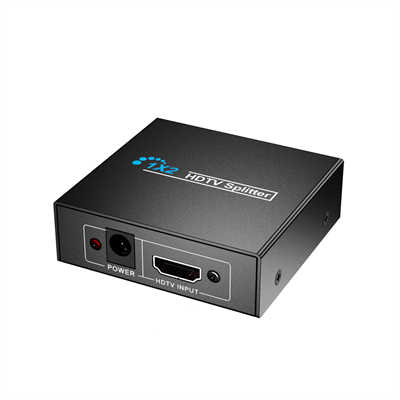
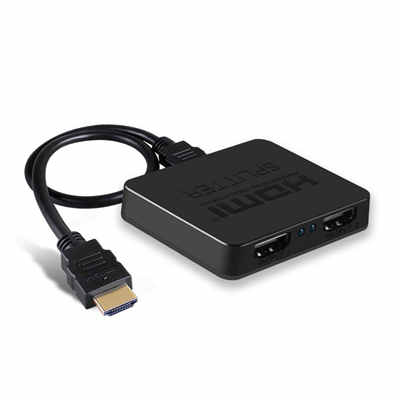
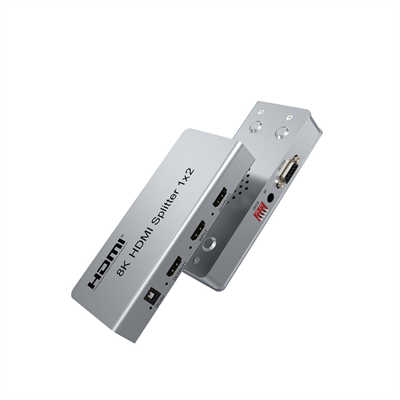
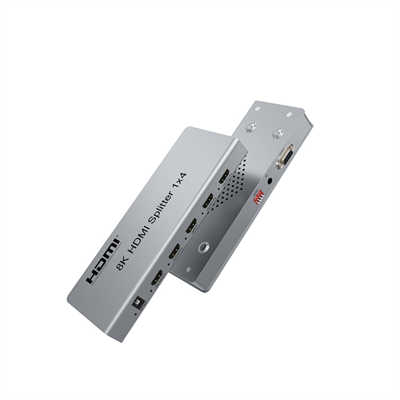
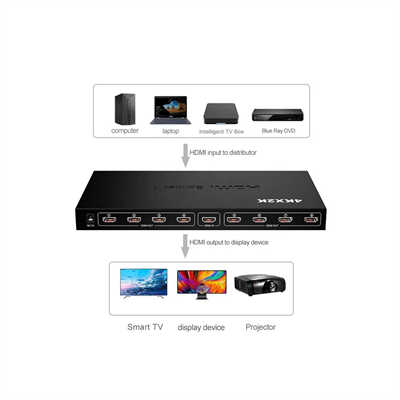
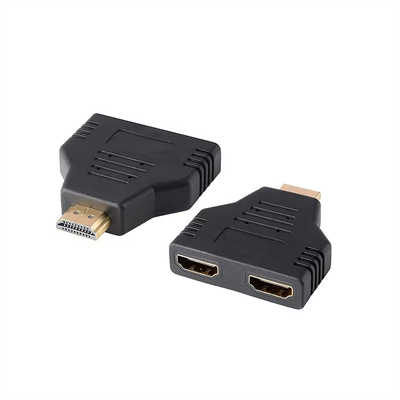
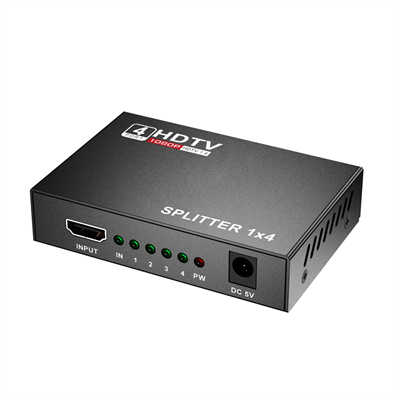
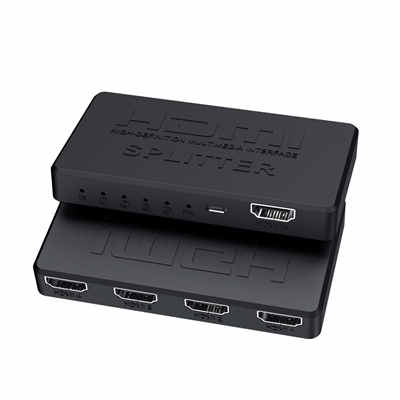
An HDMI splitter is a device that takes one HDMI input and duplicates it to multiple outputs. However, there’s an important distinction to understand: standard HDMI splitters create mirrored (duplicate) displays, not extended displays.
For a true extended desktop where you can drag windows between monitors and use each screen independently, you typically need:
- A graphics card with multiple outputs
- An HDMI switch with MST (Multi-Stream Transport) support
- A USB to HDMI adapter with DisplayLink technology
- A docking station with multiple video outputs
2.Types of HDMI Splitters and Their Capabilities
2.1.Basic HDMI Splitters (Mirrored Only)
- Function: Duplicates the same image to multiple screens
- Best for: Presentations, digital signage, or showing the same content on multiple TVs
- Limitation: Cannot create extended desktop across monitors
2.2 MST Hub (Multi-Stream Transport)
- Function: Splits one DisplayPort or USB-C signal into multiple independent displays
- Compatibility: Requires DisplayPort 1.2+ or USB-C with DP Alt Mode
- Advantage: Supports true extended display mode
- Note: Most MST hubs don’t work with standard HDMI ports alone
2.3 USB to HDMI Adapters (DisplayLink)
- Function: Adds extra monitor outputs via USB connection
- Software: Requires DisplayLink drivers
- Performance: Good for office work, but may lag with video/gaming
- Best for: Laptops with limited video ports
3.How to Achieve Extended Display with HDMI
3.1 Option 1: Use Your Graphics Card’s Multiple Outputs
Most modern desktops and laptops have multiple video ports (HDMI, DisplayPort, USB-C). Connect each monitor to a separate port for true extended display support.
3.2 Option 2: USB-C/Thunderbolt Docking Station
- Connect one cable to your laptop
- Provides multiple HDMI/DisplayPort outputs
- Supports extended display mode
- Often includes charging and USB hub functionality
3.3 Option 3: DisplayLink USB Adapters
- Plug into USB-A or USB-C port
- Converts USB signal to HDMI output
- Each adapter acts as a separate graphics card
- Can add up to 6+ monitors via USB
4. Key Considerations When Choosing a Solution
| Feature | Basic HDMI Splitter | MST Hub | USB Adapter | Docking Station |
|---|---|---|---|---|
| Extended Display | ❌ No | ✅ Yes | ✅ Yes | ✅ Yes |
| Mirrored Display | ✅ Yes | ✅ Yes | ✅ Yes | ✅ Yes |
| Gaming Performance | ✅ Good | ✅ Good | ⚠️ Limited | ✅ Good |
| Ease of Setup | ✅ Easy | ⚠️ Moderate | ⚠️ Requires drivers | ✅ Easy |
| Price | $10-30 | $30-60 | $15-50 | $50-200 |
5. Common Misconceptions
Myth: “An HDMI splitter will give me more screen space for work.” Reality: Standard splitters only mirror content. You’ll see the same thing on both screens.
Myth: “All USB-C to HDMI adapters support extended display.” Reality: Many only mirror the existing display unless they use DisplayLink or MST technology.
6. Best Practices for Dual Monitor Setup
- Check your computer’s video outputs first – use native ports when possible
- Verify MST support if buying a hub (check your graphics card specs)
- Consider refresh rates – basic splitters may limit all monitors to the lowest common resolution/refresh rate
- Read reviews specifically mentioning “extended desktop” or “Eyefinity/Surround” support
- Test return policies – compatibility varies significantly between devices
7. Recommended Products for Extended Display
- Plugable USB 3.0 to HDMI Adapter (DisplayLink) – Reliable for office use
- Cable Matters USB-C MST Hub – Good for modern laptops with USB-C
- Anker PowerExpand Elite Dock – Full-featured docking solution
- StarTech.com MST Hub – Professional-grade MST solution
8.Conclusion
For true dual monitor extended display, avoid basic HDMI splitters – they’re designed for mirroring, not expanding your workspace. Instead, invest in MST-compatible hubs, USB DisplayLink adapters, or a quality docking station that matches your computer’s available ports. Always verify “extended desktop” support in product specifications before purchasing.
📖 Related Featured Articles

Top 5 Benefits of Using an HDMI Splitter for Digital Signage - WinFitin
Streamline your business advertising. Discover how HDMI splitters simplify managing multiple screens...

Do HDMI Splitters Reduce Quality? Debunking the Myth - WinFitin
Worried about losing resolution? We debunk the myth of quality loss and explain why digital signals ...

Using an HDMI Splitter to Connect TV and Projector Simultaneously
Create the ultimate indoor/outdoor viewing setup. Learn how to use an HDMI splitter to run both a TV...

Powered vs Unpowered HDMI Splitter Which Offers Better Stability?
Powered vs unpowered HDMI splitters—does extra power really improve stability? We compare signal los...