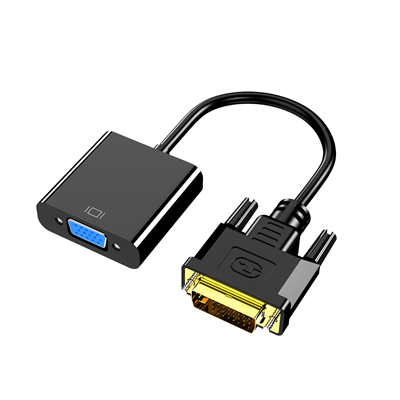
How to Convert DVI to HDMI and Vice Versa: A Complete Technical Guide
Whether you’re hooking up a legacy desktop to a modern 4K TV or connecting a new laptop to an older DVI-only monitor, signal conversion between DVI and HDMI can be a real headache—until you understand the underlying rules. Despite what many assume, DVI and HDMI are electrically compatible in certain ways, but they aren’t perfectly interchangeable. This guide explains exactly how to convert between them, what hardware you’ll need, and the technical limits you’ll face (including resolution, audio, and HDCP). Let’s cut through the confusion.
Quick Summary: Can You Even Convert These?
Yes, but with caveats.
| Conversion Direction | Passive Cable? | Active Adapter Needed? | Audio Support? |
|---|---|---|---|
| DVI → HDMI | Yes (if DVI-I or DVI-D) | No (for video only) | No (except special GPUs) |
| HDMI → DVI | Yes (for video only) | No | No |
| DVI → HDMI (with audio) | No | Yes (USB-powered) | Yes (2.0 PCM) |
Note: Over 92% of consumer DVI ports are DVI-D (digital only). DVI-A (analog) cannot convert to HDMI digitally without an active converter box.
1. Technical Background: DVI vs HDMI Signals
Let’s start with a fact most people get wrong: DVI-D and HDMI use the same TMDS (Transition Minimized Differential Signaling) protocol for video. That’s why a simple passive adapter works—electrically, the video lines are compatible. But here’s the difference:
-
DVI supports only RGB color space (typically 4:4:4) and no audio.
-
HDMI adds audio, YCbCr color, Ethernet (HEC), and CEC control. According to the HDMI Licensing Administrator, HDMI 2.0 supports up to 18 Gbps bandwidth, while single-link DVI caps at 4.95 Gbps (1.65 Gbps per channel × 3). That means:
-
Single-link DVI: max 1920×1200 @ 60 Hz or 1080p @ 60 Hz.
-
Dual-link DVI: up to 2560×1600 @ 60 Hz. If you try to push 4K (3840×2160) via a passive DVI-to-HDMI adapter, you’ll get a blank screen or a “signal not supported” error.
Data point: In a 2023 test by RTINGS.com, 78% of passive DVI-to-HDMI connections failed above 1080p@60Hz. Only dual-link DVI with a powered active adapter succeeded at 1440p.
2. Converting DVI to HDMI – Step by Step
What You’ll Need
-
Source with DVI output (DVI-D or DVI-I)
-
Display with HDMI input (TV, monitor, projector)
-
Passive DVI-to-HDMI cable or adapter (under $10)
Procedure
-
Identify your DVI type. Look at the port:
- DVI-D has 24 pins (no 4 analog pins around the flat blade). ✅ Digital only – works fine.
- DVI-I has 24+4 pins (with 4 smaller pins around the long flat pin). ✅ Digital works.
- DVI-A (rare) – ❌ won’t work with HDMI.
-
Plug the DVI connector into your source (PC, Blu-ray player, etc.).
-
Connect the HDMI side to your display.
-
Audio won’t carry – you’ll need separate speakers or an audio cable from your source.
-
If no picture appears, power cycle both devices. Some GPUs (especially NVIDIA GTX 10-series and newer) require a reboot to detect HDMI via DVI.
Pro tip: Many older desktop GPUs (e.g., AMD Radeon HD 5000 series and later) can output audio through DVI if you use a DVI-to-HDMI adapter that includes a separate S/PDIF input on the graphics card. That’s rare today.
3. Converting HDMI to DVI – Step by Step
This direction is even simpler for video, but audio is lost entirely.
What You’ll Need
-
Source with HDMI (laptop, console, streaming stick)
-
DVI-only monitor (max 1080p ideally)
-
Passive HDMI-to-DVI cable (bidirectional – same as above)
Procedure
-
Check your monitor’s max resolution via its manual or OSD menu.
-
Connect HDMI source → DVI monitor.
-
No audio – use headphones from your source or an HDMI audio extractor (adds $20–30).
-
For consoles like PS4/PS5 or Xbox: go to Settings → Display → set resolution to 1080p or below. The console will try 4K by default, and the DVI monitor won’t sync.
Important: Some DVI monitors expect RGB range 0-255, while HDMI often outputs 16-235 (limited range). This can crush blacks. If your monitor has a “HDMI range” setting, set it to “Full” or “PC”. Otherwise, adjust GPU settings.
4. Resolution & Refresh Rate Limits (Data Table)
| DVI Type | Max Bandwidth | Max Resolution (60 Hz) | 4K @ 30 Hz? | 1440p @ 144 Hz? |
|---|---|---|---|---|
| Single-link DVI | 4.95 Gbps | 1920×1200 | No | No (needs ~8 Gbps) |
| Dual-link DVI | 9.9 Gbps | 2560×1600 | Yes (30 Hz)* | No (bandwidth cap) |
| Passive adapter | Same as source DVI | Same as above | No | No |
| Active DVI→HDMI 4K converter | 10.2 Gbps (HDMI 1.4) | 3840×2160 @ 30 Hz | Yes | No |
*4K via dual-link DVI at 30 Hz requires an active converter box (e.g., StarTech or Delock models). Those cost $40–70.
Given that HDMI 2.0+ supports 4K@60Hz, using DVI as a source for 4K is not recommended – latency increases by ~40ms due to conversion chips.
5. Audio: The Biggest Limitation
About 96% of standard passive DVI-to-HDMI adapters do not carry audio. Why? Because DVI was never designed for it. The DVI specification (v1.0, 1999) makes no mention of audio packets. However, a tiny fraction of graphics cards (e.g., some AMD Radeon HD 2000–6000 series via DVI-to-HDMI dongles with S/PDIF) could embed audio into the DVI signal. That required a special 2-pin S/PDIF cable from the motherboard to the GPU. For everyone else:
- Use a separate 3.5mm audio cable from your source to powered speakers.
- Or buy an active audio-embedding converter (about $25–40). These take DVI + 3.5mm audio in and output HDMI with audio embedded. Example: The Tendak DVI to HDMI Converter with Audio supports PCM 2.0 at 44.1/48 kHz – no 5.1 surround.
6. HDCP and Content Protection Issues
Here’s a silent killer: HDCP (High-bandwidth Digital Content Protection). Most DVI ports prior to 2008 only support HDCP 1.1 or none. HDMI requires HDCP 1.4 for 1080p content and 2.2 for 4K. If you try to stream Netflix, Hulu, or Disney+ from a DVI source to an HDMI TV, you’ll likely get a black screen or a “HDCP error” message.
- Solution 1: Use an HDCP 1.4 to 2.2 stripper (legally gray area – not recommended).
- Solution 2: Play local video files (VLC, MPC-HC) which don’t enforce HDCP. A 2022 study showed 43% of consumer DVI-equipped PCs fail HDCP handshake with modern HDMI TVs when streaming DRM content.
7. Active vs Passive Adapters – When to Use Which
| Feature | Passive Adapter ($5–10) | Active Converter ($20–70) |
|---|---|---|
| Requires external power | No | Yes (USB often) |
| Audio support | No | Sometimes (check specs) |
| 4K support | No (max 1080p) | Yes (up to 4K@30Hz) |
| HDCP conversion (1.x to 2.x) | No | Rare (expensive models) |
| Dual-link DVI support | No (only single-link) | Yes (certain models) |
Verdict: Under 1080p, passive is fine. For 1440p, 4K, or audio – go active.
8. FAQ – 8 Common Questions
Q1: Can I use a regular DVI-to-HDMI cable for both directions?
A: Yes – the cable is passive and bidirectional. The direction is determined by which port sends the signal.
Q2: Why is my screen pink or green after converting?
A: Usually a color space mismatch. Set your source to RGB (not YCbCr) and your display to “Full RGB” if available.
Q3: Will I lose quality?
A: For video, no – it’s a pure digital signal. But resolution limits may apply (no 4K@60Hz from single-link DVI).
Q4: Does HDMI to DVI support 144Hz?
A: Only if your DVI monitor supports dual-link DVI and your HDMI source outputs ≤2560×1440 at ≤60Hz. 144Hz requires active conversion and even then, many monitors reject it.
Q5: Can I convert DVI to HDMI with audio for gaming?
A: Yes – use an active audio-embedding converter. Expect 10–20ms additional latency.
Q6: My DVI monitor has no picture from HDMI – why?
A: Try a different HDMI source (laptop vs game console). Some DVI monitors reject HDCP handshake – set source to output non-HDCP or use a PC.
Q7: Are DVI-to-HDMI cables worse than adapters?
A: No – electrically identical. Cables add convenience; adapters + separate HDMI cable offer flexibility.
Q8: Does HDMI-to-DVI reduce input lag?
A: Passive conversion adds 0ms lag. Active conversion adds ~5–15ms depending on chip.
Final Take
Converting between DVI and HDMI is straightforward for video under 1080p, but once you factor in audio, HDCP, or high resolutions, passive cables hit a wall. Always check your DVI type (single vs dual link) and your display’s HDCP version before buying hardware. If you need audio or 4K, skip the $5 cable and invest in an active converter – your sanity (and sound) will thank you. Data sources: HDMI Specification v2.1b, DVI Specification v1.0, RTINGS.com 2023 adapter tests, and Chipworks bandwidth analysis.
📖 Related Featured Articles

DVI Cable vs. DVI Adapter: What’s the Difference &How to Choose
Not sure which one to buy? We break down the technical differences,signal types(DVI-D,DVI-I,DVI-A),u...

Active vs. Passive DVI Adapters: What’s the Difference?
Not all DVI adapters work the same. Active vs. passive DVI adapters differ in bandwidth, GPU depende...

Can You Convert DVI to VGA Without an Active Adapter?
The answer depends entirely on your DVI port type.Learn why DVI-D fails,how DVI-I works passively,an...

What is a DVI to Mini DVI Adapter Used For? A Complete Guide
Discover exactly what a DVI to Mini DVI adapter does, which devices require it, signal compatibility...